Key Takeaways
-
Test upload speed and assess current network infrastructure before purchasing cameras, as weak bandwidth or outdated cabling causes video lag and freezing regardless of camera quality.
-
Implement multi-factor authentication (MFA) on all remote access systems and use unique individual logins instead of shared credentials to prevent unauthorized access to live feeds and recorded footage.
-
Estimate bandwidth per camera based on resolution and frame rate, add headroom for simultaneous remote viewers, and consider dedicated fiber internet if video is mission-critical to your business.
-
Choose between cloud-based, on-premises, or hybrid systems based on your needs: cloud for multi-location management, on-premises for guaranteed local recording, or hybrid for reliability with remote access.
-
Segment your camera network separately from sensitive business systems using firewalls and proper network zones to contain damage if one network component is compromised.
-
Plan for internet outages by using hybrid systems with local recording plus cloud backup, or add cellular failover connections to maintain remote access during connectivity loss.
Picture this: you’re at home, or maybe even on vacation, and you want to peek in on your Tampa store or warehouse. With a good business camera system with remote access, you just grab your phone and check in, no matter where you are. Sounds simple, right? But here’s the thing we’ve noticed after years of helping business owners across Tampa Bay and beyond: a lot of companies rush into remote camera setups without thinking through the details, and they end up with laggy video, security gaps, or systems that go dark the moment the internet hiccups.
We get it. You’re busy running a business, not studying network engineering. That’s exactly why we put together this friendly guide. We’ll walk through the most common mistakes business owners, IT managers, and office leaders make with remote-access camera systems, and how to avoid every single one of them. By the end, you’ll know exactly what to look for so your cameras actually work when you need them most.
Mistake 1: Choosing Cameras Before Checking Your Network
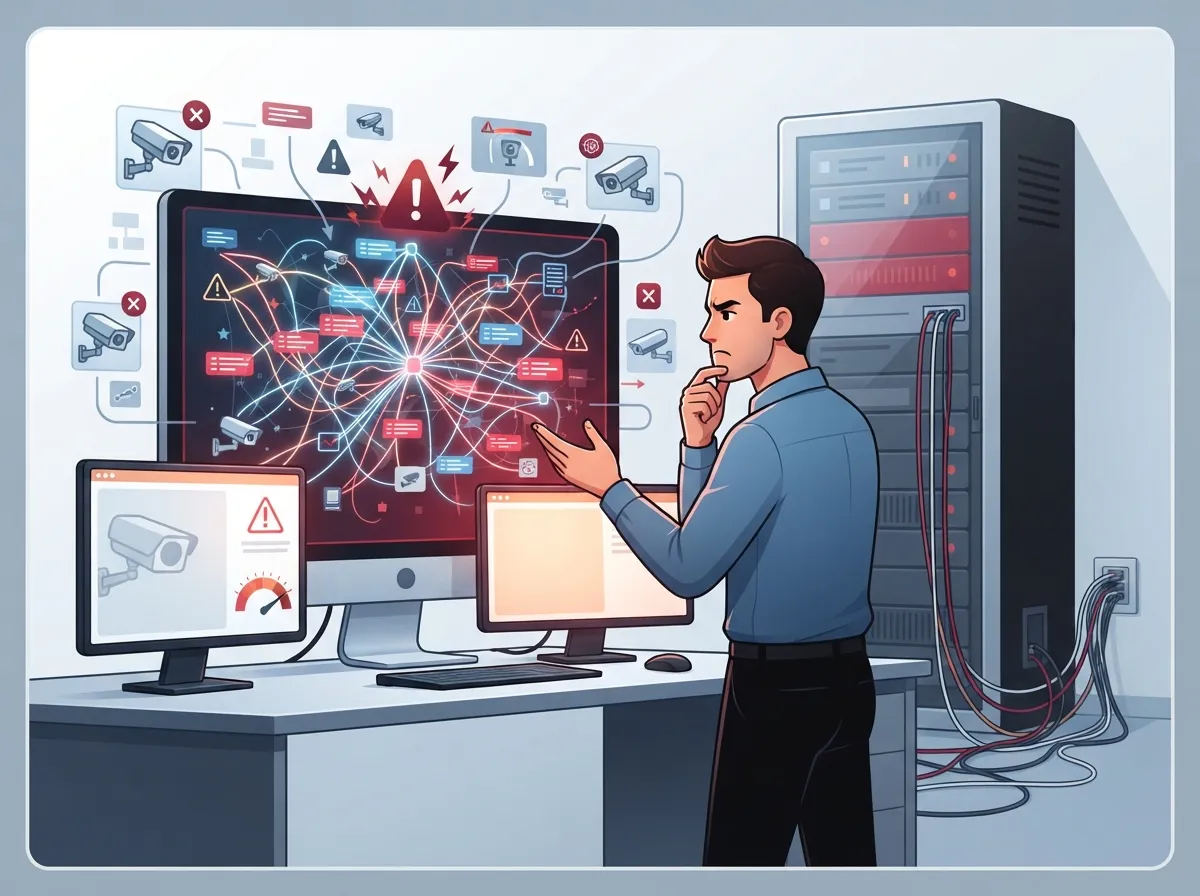
One of the biggest slip-ups we see is picking out fancy cameras first and worrying about the network later. That’s backwards. Business camera systems with remote access rely on your internet connection and internal network to send video to your phone or laptop. If your bandwidth is weak or your cabling is outdated, even the best camera will stutter and freeze.
Before buying anything, take a look at your current setup. Do you have enough upload speed? Is your business relying on shaky Wi-Fi instead of solid wiring? This is where structured cabling comes into play, since reliable wired connections tend to handle video traffic far better than a stretched Wi-Fi signal. If you’re not sure where your network stands, our guide on high-speed internet tips that save money is a great place to start.
Mistake 2: Underestimating Bandwidth Needs
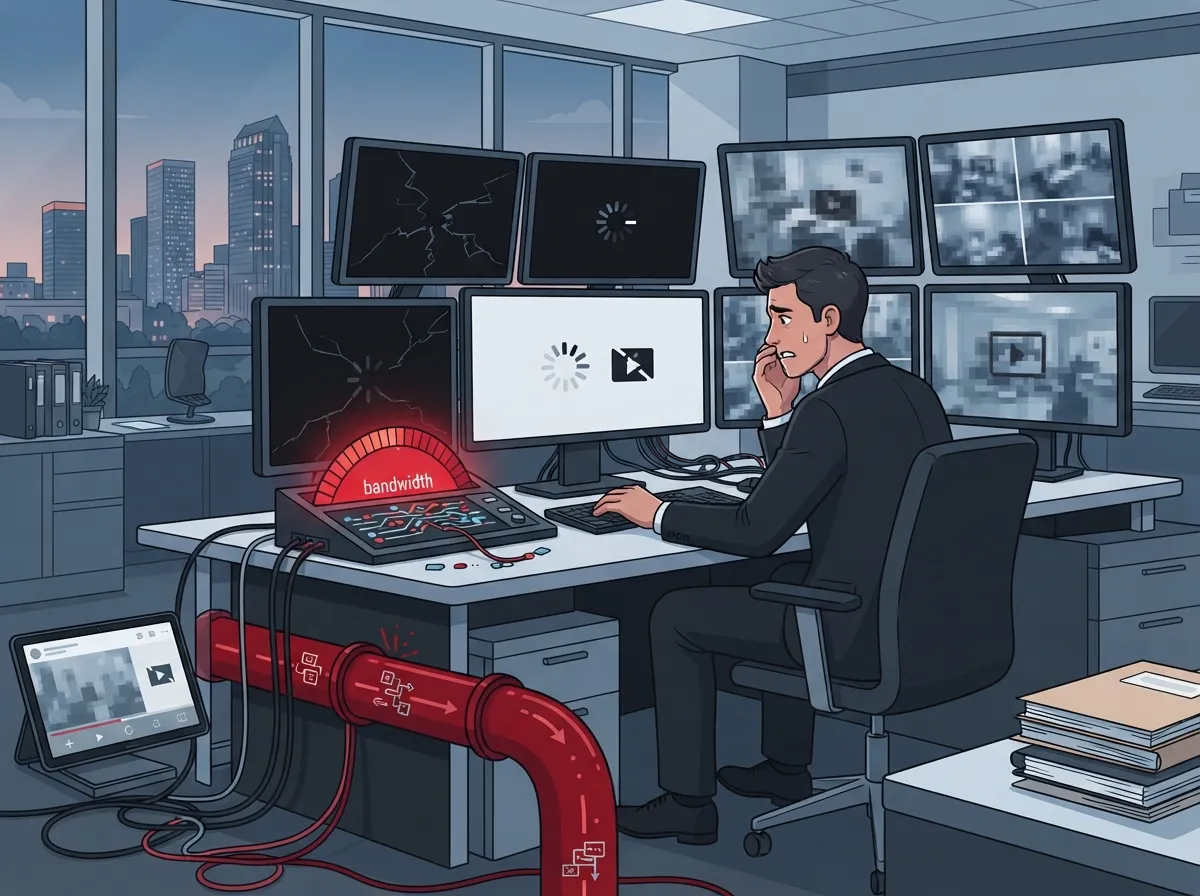
Here’s a fact that surprises a lot of business owners: each high-definition camera can eat up a decent chunk of bandwidth, especially if you’re recording in 4K or running several cameras at once. Add in remote viewing from multiple staff members, and you can quickly overload a connection that seemed “fast enough” for email and browsing.
The global video surveillance market was valued around $56 billion to $63 billion in 2025, depending on how you measure it, and it’s expected to grow significantly by the mid-2030s according to reports from MarketsandMarkets and Global Market Insights. That growth is largely driven by cloud and IP camera adoption, which means more businesses are leaning on their internet connections for video. If your bandwidth isn’t sized correctly, you’ll feel it fast.
- Estimate bandwidth per camera based on resolution and frame rate
- Add extra headroom for remote viewers checking in simultaneously
- Consider a dedicated connection or dedicated fiber internet if video is mission-critical
- Test your upload speed, not just download speed, since cameras push video out
Mistake 3: Skipping Multi-Factor Authentication
This one keeps us up at night a little. Remote access is wonderful for convenience, but it also opens a door that hackers love to try. The National Institute of Standards and Technology (NIST) recommends multi-factor authentication for any remote access to sensitive systems, and business cameras absolutely count.
Without MFA, anyone who guesses or steals a password can watch your live feeds or dig through recorded footage. That’s a scary thought for any office manager responsible for employee safety or customer privacy. Turning on MFA takes just a few minutes but adds a serious layer of protection.
Mistake 4: Using Default Passwords and Shared Logins
We’ve walked into more than a few businesses where every employee shares the same login for the camera app. It feels convenient until someone leaves the company and still has access months later. NIST guidance is clear here too: use unique credentials for each user and remove default passwords immediately after installation.
Here’s a simple numbered approach we recommend to every client:
- Create individual logins for each authorized user
- Change every default password during setup
- Apply least-privilege access, meaning people only see what they truly need
- Review and remove old accounts regularly
- Enable activity logs so you know who viewed what and when
Mistake 5: Ignoring Network Segmentation
Would you want your security cameras sitting on the exact same network as your point-of-sale system or your accounting software? Probably not. Network segmentation keeps your camera traffic separate from sensitive business data, so if one part of your network gets compromised, the damage stays contained.
This is where working with an experienced telecom expert really pays off. A properly designed network with firewalls and separate zones for cameras, phones, and computers gives you peace of mind without slowing anyone down.
Mistake 6: Forgetting About Internet Outages
What happens to your cameras if the internet goes down? This is one of the most common questions we hear, and the answer depends entirely on your setup. Cloud-only systems typically stop transmitting live footage during an outage, though many still record locally on the camera or a small onboard storage card.
On-premises systems with a network video recorder (NVR) often keep recording locally even without internet, but you lose remote viewing until the connection returns. A hybrid approach, combining local recording with cloud backup, tends to offer the best of both worlds. Adding cellular failover or a backup internet connection can also keep your remote access alive during an outage.
| System Type | Records During Outage | Remote Access During Outage | Best For |
|---|---|---|---|
| Cloud-Only (VSaaS) | Limited or none | No | Simple setups, multi-site management |
| On-Premises NVR | Yes, locally | No | Single sites needing local control |
| Hybrid (Local + Cloud) | Yes | Sometimes, with failover | Businesses needing reliability and remote access |
Mistake 7: Overlooking PoE and Proper Cabling
Power over Ethernet, or PoE, lets a single cable deliver both power and data to your cameras. It’s a huge time-saver during installation and reduces the mess of extra power cords. Skipping proper PoE-rated cabling or trying to stretch cheap wiring across long distances often leads to signal loss or camera dropouts.
If you’re planning new cameras alongside an office renovation or expansion, it makes sense to plan your cabling early. Check out our resource on how structured cabling supports VoIP phones and security cameras together, since a smart cabling plan supports your whole communications setup, not just cameras.
Mistake 8: Choosing Cloud or On-Premises Without Comparing Both
Business owners often assume they must pick one system type without weighing the tradeoffs. Cloud-managed systems, sometimes called Video Surveillance as a Service, make it easy to manage several locations from one dashboard. That’s especially handy for franchise operators managing multiple Tampa Bay sites or expanding nationwide.
On-premises systems give you more local control and can keep recording during outages, but remote access and multi-site management get trickier. Here’s a quick breakdown to help you decide:
- Choose cloud-based if: you manage multiple locations, want easy remote access, and prefer minimal on-site hardware
- Choose on-premises if: you need guaranteed local recording and have strong in-house IT support
- Choose hybrid if: you want the reliability of local storage plus the convenience of cloud remote viewing
Mistake 9: Failing to Plan for Footage Retention and Privacy
How long should you keep security footage? This question trips up a surprising number of businesses. Retention needs vary by industry and location, and some businesses face specific legal requirements for how long footage must be stored and how it can be shared.
Before installing cameras, think through these questions:
- Do you need signage notifying employees or customers of recording?
- Will you record audio, and is that legal in your state?
- How long will footage be retained before it’s automatically deleted?
- Who can request access to footage, and how is that request documented?
A quick conversation with legal counsel can save you major headaches later, especially if your business operates in healthcare, education, or other regulated industries.
Mistake 10: Not Integrating Cameras With Other Business Systems
Modern business camera systems with remote access don’t have to work in isolation. Many can integrate with access control systems, alarms, intercoms, and even your business phone system. Imagine a visitor buzzes the front door, and your receptionist can see and speak to them right from a mobile app, all tied into your VoIP setup.
These integrations save time and improve safety. If you’re already using or considering cloud-based access control, pairing it with your camera system creates a much more complete security picture. Franchise operators and mid-sized enterprises especially benefit from this kind of unified approach across multiple sites.
Mistake 11: Going It Alone Without Expert Support
Setting up remote camera access sounds simple in theory, but between bandwidth planning, cybersecurity, cabling, and choosing the right hardware, it adds up quickly. Many business owners try to DIY the whole thing and end up with a patchwork system that barely functions.
This is exactly why having a single point of contact matters so much. At Ideal Solutions Provider, we’ve spent over 24 years helping Tampa businesses and companies nationwide navigate exactly these kinds of decisions, working with 35+ vetted suppliers to find the right fit rather than pushing one-size-fits-all packages. Whether you’re a small business owner juggling your first camera system or an IT manager overseeing multiple locations, having an expert partner in your corner makes the whole process smoother.
What a Complete Remote Access Camera Solution Looks Like
So what does it actually take to build a system that works well? Here’s a simple summary of the pieces that typically come together:
- IP cameras suited to your lighting, coverage area, and resolution needs
- Reliable network connectivity, often supported by Internet Service Provider plans built for business use
- Proper cabling, including PoE where applicable
- Cloud storage or an on-site NVR, depending on your needs
- Secure remote viewing software with MFA and user permissions
- Ongoing monitoring, firmware updates, and support
Getting each of these right takes some planning, but it doesn’t have to be overwhelming. A good telecom and IT partner will walk through camera placement, bandwidth, storage, and cybersecurity with you before recommending equipment, saving you from costly redos down the road.
Wrapping It Up
Remote access cameras can genuinely transform how you keep an eye on your business, whether you’re managing one Tampa office or a growing chain of locations across the country. The key is avoiding these common pitfalls: skipping network prep, ignoring cybersecurity basics, forgetting about outages, and trying to handle it all without support.
We’d love to help you build a system that actually works the way you need it to, without the guesswork. Feel free to get in touch with our team for a free consultation, or give us a call to talk through your specific setup. You can also follow along with tips and updates on our Facebook, Instagram, and YouTube pages. We’re here to make business telecom and security simple, one honest conversation at a time.
FAQs
Q: What is a business camera system with remote access?
A: It’s a video surveillance setup that lets you view live and recorded footage from your phone or computer, no matter where you are. These systems use your internet connection and cloud or network storage to send video straight to you, which is incredibly handy when you can’t be on-site all day.
Q: How do I view my business security cameras remotely from a phone?
A: Most modern systems come with a mobile app you download and log into with your own secure credentials. Once connected, you can pull up live feeds or recorded clips in just a few taps, and we always recommend turning on multi-factor authentication for extra peace of mind.
Q: Do business security cameras keep recording if the internet goes down?
A: It really depends on your setup. On-premises systems with local storage usually keep recording during an outage, while cloud-only systems may pause until the connection returns, so a hybrid approach often gives you the best of both worlds.
Q: How much internet bandwidth do business security cameras need?
A: It varies based on camera resolution, frame rate, and how many cameras you’re running at once. We always suggest testing your upload speed specifically, since that’s what your cameras rely on to send footage out to the cloud or your remote viewers.
Q: Can business cameras integrate with access control or phone systems?
A: Absolutely, and it’s one of our favorite parts of building a complete security setup. Pairing cameras with access control or your VoIP phone system means you can see who’s at the door and even talk to them remotely, all from one connected platform.