Key Takeaways
-
Start with a security assessment to identify high-risk zones and coverage gaps before purchasing any hardware; this foundational step prevents costly mistakes in camera placement.
-
Use edge analytics or AI-based alert systems to reduce bandwidth consumption and false alarms by only triggering notifications for genuine security events rather than constant video streaming.
-
Choose connectivity based on your location: broadband for urban offices, cellular for construction sites, or satellite for remote properties; each has different cost and reliability tradeoffs.
-
Set up clear escalation procedures and response protocols with your team; cameras alone don't protect your business without documented procedures for how staff should react to alerts.
-
Implement zero-trust network architecture and encrypted video streams to protect footage from hackers and ensure your monitoring system doesn't compromise your overall business network security.
-
Perform quarterly maintenance checks on image quality, connectivity, storage capacity, and alert logic; skipping maintenance is one of the most common mistakes businesses make after installation.
Picture this: you’re at home on a Saturday, and your phone buzzes with an alert from your warehouse across town. You pull up live video in seconds, see everything is fine, and go back to enjoying your weekend. That’s the peace of mind remote video monitoring brings to business owners every single day. If you’ve been wondering how to set up remote video monitoring for your Tampa business or any location nationwide, you’re in the right place, and we’re happy to walk you through it.
Remote video monitoring lets you watch your business locations from anywhere using cameras connected to secure networks. Whether you run a single storefront or manage a dozen franchise sites, this technology keeps eyes on your property around the clock. The good news? Setting it up is more straightforward than you might think, especially with the right telecom partner guiding you along the way.
In this guide, we’ll break down every step of the process in simple terms. We’ll cover the equipment you need, how connectivity works, and how to keep everything secure. By the end, you’ll feel confident about getting started, or at least know exactly what questions to ask your provider.
What Is Remote Video Monitoring, Really?
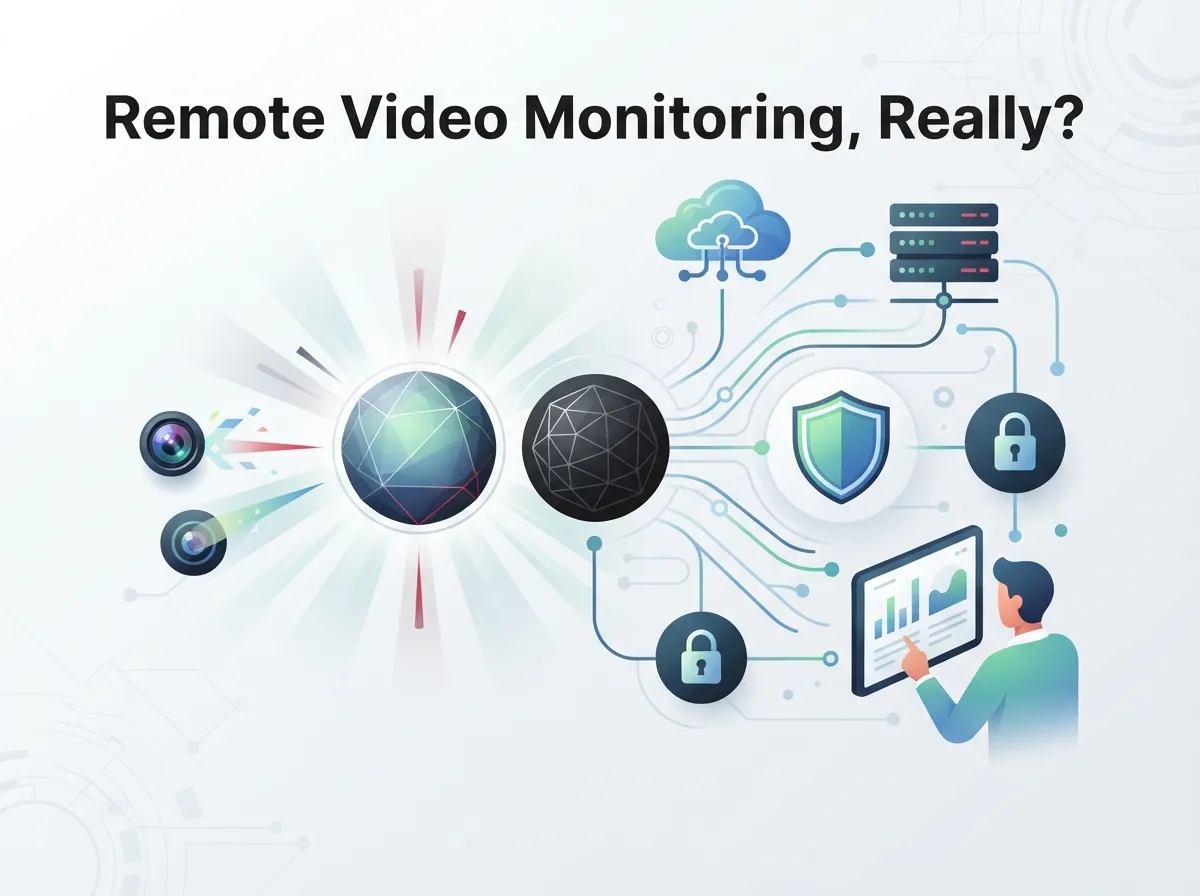
Remote video monitoring means watching live or recorded video from cameras at a business site while you’re somewhere else entirely. It relies on IP cameras or existing CCTV feeds connected over broadband, cellular, or satellite links. This connection lets you view footage from a phone, laptop, or dedicated monitoring center.
Unlike old-school security systems that only recorded footage for later review, remote monitoring gives you real-time visibility. Many systems now include smart alerts that tell you when something needs attention, so you’re not staring at screens all day. This is especially useful for busy office managers and franchise operators juggling multiple responsibilities.
Why Businesses Are Making the Switch
More Tampa businesses are moving away from basic cameras and toward fully connected, cloud-based systems. Here are a few reasons why:
- You can check on your property from anywhere with an internet connection
- Alerts notify you instantly when something unusual happens
- Multiple locations can be monitored from one simple dashboard
- Footage is stored safely offsite, protecting it from theft or damage
- Insurance costs sometimes drop when strong security measures are in place
If you want a deeper look at why this shift is happening, check out our article on what security cameras really do for your business.
Step-by-Step: How to Set Up Remote Video Monitoring
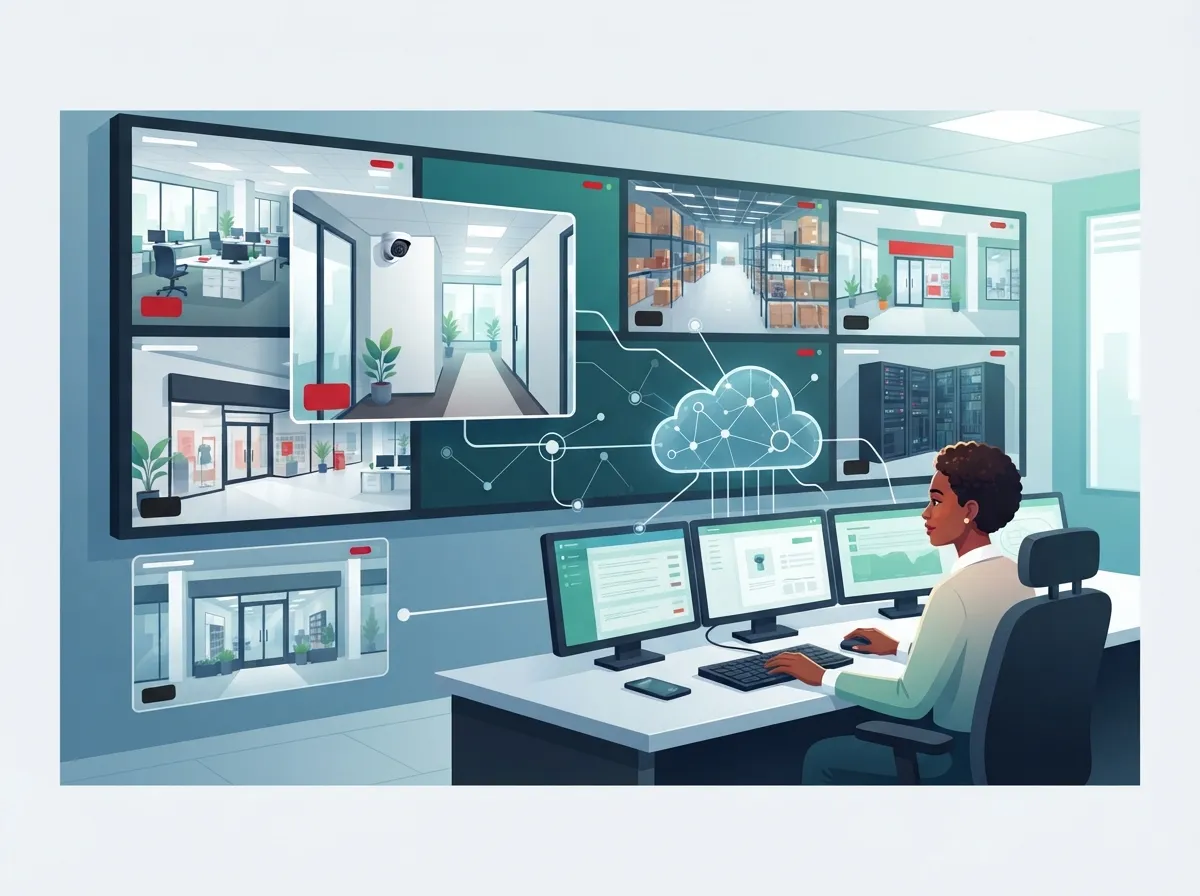
Setting up a system doesn’t have to feel overwhelming. Follow these steps, and you’ll have a reliable setup running smoothly in no time.
- Start with a security assessment. A good setup begins with identifying high-risk zones, coverage gaps, and response needs before any hardware goes in.
- Plan your camera placement. Focus on entry points, perimeters, loading docks, and restricted areas for the best coverage.
- Choose your connectivity method. Decide between broadband, cellular, or satellite links based on your site’s location and reliability needs.
- Select the right cameras and recorders. Pick IP cameras or use existing CCTV equipment paired with a video recorder that supports remote access.
- Set up secure networking. Use managed connectivity and zero-trust network practices to keep your video streams protected.
- Integrate monitoring software. Connect your cameras to a platform that lets you view feeds live and review recorded clips.
- Configure alerts and analytics. Set up motion detection or AI-based rules so you only get notified about real events.
- Test everything thoroughly. Check image quality, connection stability, and alert accuracy before going live.
- Train your team. Make sure staff know how to respond when alerts come in.
- Schedule ongoing maintenance. Regularly test connectivity, image quality, and alert logic to keep the system running well.
One 2025 business security guide estimates that professional installation typically takes 3 to 10 days, depending on the number of cameras and sites involved. Some vendors, like Coram AI, claim initial setup can take less than 10 minutes, though that reflects a specific onboarding process rather than a full deployment across multiple locations.
Equipment You’ll Need for Remote Video Monitoring
Getting the right hardware matters just as much as the setup process itself. Here’s what a typical business system includes:
| Equipment | Purpose |
|---|---|
| IP Cameras | Capture video and send it over the network for live viewing or storage |
| Network Video Recorder (NVR) | Stores footage locally or syncs with cloud storage |
| Ruggedized Router | Provides stable, secure connectivity, especially at remote sites |
| Cellular or Satellite Modem | Connects cameras where wired internet isn’t available |
| Monitoring Software | Lets you view live feeds, set alerts, and review clips remotely |
| Backup Power Supply | Keeps cameras running during power outages |
Companies like Ericsson Cradlepoint use ruggedized IoT routers paired with zero-trust networking to connect cameras securely. This approach means your footage streams in real time or gets stored and offloaded later, depending on your bandwidth situation.
Can You Use Your Existing Cameras?
Yes, in many cases you can. If your current CCTV system is in decent shape, it may connect to new networking equipment without a full replacement. This saves money and shortens installation time. A quick assessment from a telecom provider can confirm whether your existing setup is compatible with remote monitoring upgrades.
How Much Bandwidth Do You Actually Need?
This is one of the most common questions we hear from IT managers and office administrators alike. Bandwidth needs depend on several factors:
- Number of cameras running at once
- Video resolution (higher resolution uses more data)
- Whether footage streams live or gets stored and reviewed later
- Use of edge or AI analytics to reduce unnecessary data transfer
A 2026 monitoring guide notes that many systems now use edge analytics or NVR-based analytics to trigger alerts and cut down on bandwidth use. This means cameras only send footage when something actually happens, rather than streaming constant data. If your current connection struggles with video traffic, it might be time to review your setup. Our guide on high-speed internet for business covers ways to keep costs down while boosting performance.
Connectivity Options: Broadband vs. Cellular vs. Satellite
Choosing the right connection type depends on your location and how critical uptime is for your business. Here’s a simple comparison:
| Connection Type | Best For | Considerations |
|---|---|---|
| Broadband/Fiber | Offices, retail stores, urban locations | Fast and reliable, but requires wired infrastructure |
| Cellular | Construction sites, pop-up locations, backup connectivity | Flexible but can be pricier for heavy data use |
| Satellite | Remote job sites, rural properties | Works almost anywhere, though latency can be higher |
GroundControl notes that its remote monitoring solution connects USB or IP cameras to a rugged unit providing both satellite and cellular communications. This kind of flexibility is especially valuable for franchise operators managing sites in different regions with varying infrastructure.
Best Practices for Camera Placement
Where you put your cameras matters just as much as the technology behind them. Consider these placement tips:
- Cover all entry and exit points, including back doors and loading docks
- Monitor parking lots and perimeter fencing for early warning of trouble
- Place cameras near cash registers and high-value inventory areas
- Add coverage in restricted or sensitive zones like server rooms
- Avoid backlighting that can wash out footage during daytime hours
- Position cameras high enough to prevent tampering but low enough for clear facial detail
Good placement supports both live monitoring and later review if an incident occurs. This dual purpose makes your investment work harder for you every day.
How AI Analytics Make Monitoring Smarter
Nobody wants to sit and watch camera feeds all day. That’s where AI and edge analytics come in. These tools can automatically detect motion, flag rule violations, or recognize unusual activity without a person watching the screen constantly.
This technology reduces false alarms and saves your team valuable time. Instead of dozens of alerts for shadows or blowing leaves, you get notified about things that actually matter. It also helps control bandwidth costs since cameras aren’t constantly streaming full video when nothing is happening.
Setting Up Escalation and Response Protocols
A camera system is only as good as the response behind it. Effective remote monitoring includes:
- Clear escalation rules for different alert types
- Two-way audio for live intervention when needed
- Notification paths to staff, security teams, or local authorities
- Documented procedures so everyone knows their role during an incident
Without these pieces in place, even the best cameras won’t protect your business effectively. This is why working with an experienced partner matters so much during setup.
Keeping Your System Secure and Reliable
Security cameras only help if the network behind them stays protected. Business telecom providers often recommend these safeguards:
- Zero-trust network architecture to limit unauthorized access
- Encrypted video streams between cameras and storage
- Regular software updates for cameras and recording devices
- Segmented networks that separate camera traffic from other business systems
These steps protect your footage from hackers and keep your Internet Service Provider connection stable enough to handle video traffic alongside your phones and daily operations. For growing companies, this kind of layered security is non-negotiable.
Ongoing Maintenance: Don’t Set It and Forget It
Once your system is live, the work isn’t quite done. Regular testing keeps everything running the way it should. Providers recommend checking these items on a routine basis:
- Image quality across all cameras
- Network connectivity and uptime
- Alert logic and false alarm rates
- Response workflows with your team
- Storage capacity and backup systems
Skipping maintenance is one of the most common mistakes businesses make after installation. A quarterly checkup can catch small issues before they become bigger problems.
Why Structured Cabling and Networking Matter Too
Cameras don’t work in isolation. They depend on solid structured cabling and networking behind the scenes. If your building’s wiring is outdated or your network can’t handle extra traffic, your monitoring system will struggle no matter how good the cameras are.
This is why many businesses bundle their video monitoring setup with cabling upgrades and network improvements. Our article on signs your business needs structured cabling can help you figure out if this is a piece you’re missing.
Bringing It All Together with One Trusted Partner
Juggling cameras, internet providers, cabling companies, and monitoring software separately can turn into a full-time job. That’s where working with a single telecom partner makes life easier. Ideal Solutions Provider has spent over 24 years helping Tampa businesses and companies nationwide simplify their communications and security setups.
With partnerships across 35+ vetted suppliers, they help you compare options, avoid overpaying, and build a system that actually fits your business. Whether you need cloud video security for a single storefront or a multi-site franchise rollout, having one point of contact saves time and reduces headaches.
You can also follow their latest updates and customer stories on Facebook, Instagram, and YouTube for helpful tips and real examples of setups in action.
Common Mistakes to Avoid
Before you dive in, keep these pitfalls in mind:
- Skipping the initial security assessment and guessing at camera placement
- Underestimating bandwidth needs for multiple high-resolution cameras
- Choosing cheap cameras without considering long-term reliability
- Forgetting to set up clear escalation procedures for alerts
- Ignoring regular maintenance and testing after installation
Avoiding these mistakes early saves you money and frustration down the road. A knowledgeable provider can help you sidestep these issues from day one.
Ready to Get Your System Up and Running?
Setting up remote video monitoring doesn’t have to be complicated when you have the right guidance. From assessing your site to choosing equipment and configuring alerts, each step builds toward a system that keeps your business protected around the clock. Whether you’re a small Tampa shop owner or managing multiple franchise locations nationwide, the right setup gives you peace of mind and real-time visibility wherever you are.
If you’re ready to explore your options, our team would love to help you build a system tailored to your business. Contact us today for a free consultation, or give us a call to talk through your specific needs. We’re here to make the process simple, straightforward, and stress-free.
FAQs
Q: How do you set up remote video monitoring for a business?
A: It starts with a security assessment to find your risk areas, then moves into camera placement, network setup, and software integration. From there, you test everything and train your team on how to respond to alerts. Working with an experienced telecom partner makes this whole process much smoother!
Q: What equipment is needed for remote video monitoring?
A: You’ll typically need IP cameras, a network video recorder, a reliable router, and monitoring software that lets you view footage remotely. Depending on your location, you might also need cellular or satellite connectivity. Don’t worry, a good provider can help you figure out exactly what fits your setup.
Q: Can existing CCTV cameras be used for remote monitoring?
A: In many cases, yes! If your current cameras are in good shape, they can often connect to new networking equipment without a full replacement. This saves money and speeds up installation. A quick assessment will tell you if your existing gear is compatible.
Q: How much bandwidth does remote video surveillance require?
A: It depends on how many cameras you have, their resolution, and whether they stream live or just send alerts. Many modern systems use smart analytics to cut down on unnecessary data use, which helps keep bandwidth needs manageable. A telecom expert can help you calculate what your specific setup will need.
Q: What is the difference between remote video monitoring and recorded video surveillance?
A: Remote monitoring lets you watch live footage in real time from anywhere, while recorded surveillance simply stores video for later review. Many businesses today use both together for maximum protection. That way, you get instant alerts plus a full record if you ever need to look back.