

Key Takeaways
-
Upload speed matters as much as download speed for video calls, since your video is sent out while everyone else's is received in; don't judge a plan by its download number alone.
-
Size your connection based on peak concurrent video users, not total headcount: multiply per-person bandwidth (e.g., Teams guidance of 2.5 Mbps up and 4 Mbps down) by the busiest-hour participant count, then add room for other traffic.
-
Target round-trip latency under 60 ms, packet loss under 0.1%, and jitter under 15 ms, using Microsoft's Teams benchmarks as a reference for steady call quality.
-
Use wired Ethernet in meeting rooms and frequently used desks, since a good inside network often matters as much as the provider's line for call stability.
-
Test your real setup during busy hours with a trial meeting involving multiple participants, video, and screen sharing, across several rooms and remote connections, before trusting any speed claim.
-
Consider symmetrical connections such as business fiber or dedicated internet access, and avoid relying on DSL or cable plans with weak upload speeds for busy video use.
We have all been there. You are in the middle of an important client call, and your colleague’s face freezes into a funny expression. Then the audio turns into robot noises. Everyone smiles politely, but nobody enjoys it.
Choosing the right internet for video conferencing is one of the best ways to prevent those moments. The good news is that it is not as hard as it sounds. You do not need to be a network engineer. You just need to know what matters, how much capacity to plan for, and how to test your setup.
This friendly guide walks you through the process step by step. It is written for small business owners, office managers, IT managers, and multi-location operators alike. We will cover speed, latency, Wi-Fi, planning for busy meeting times, and what to ask a provider. Let’s get your meetings running smoothly in 2026.
Why Video Calls Need More Than Fast Download Speed
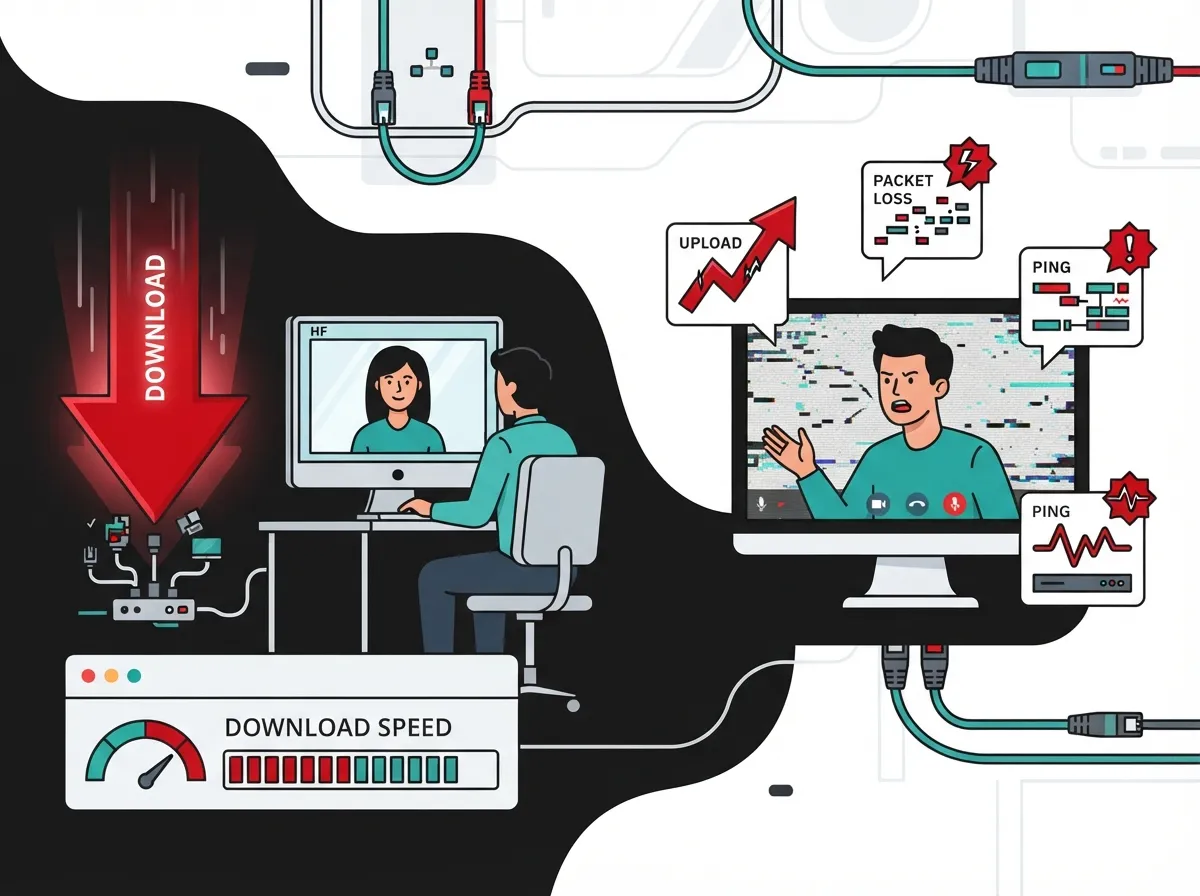
Most internet ads shout about download speed. That number looks great on a flyer. But a video call is a two-way conversation, and your computer is sending video out while it receives video in.
That means several things matter at the same time:
- Upload speed: This is how fast your video and voice leave your office.
- Download speed: This is how fast you receive everyone else’s video.
- Latency: This is the delay between speaking and being heard.
- Jitter: This is uneven timing of data. It causes choppy audio and video.
- Packet loss: This is data that never arrives, so words and frames drop out.
Real-time audio and video are very sensitive to delay. A file download can wait a second. A live conversation cannot. That is why a plan with a big download number can still give you a shaky call. If you want to dig deeper into this idea, our guide on symmetrical business internet explains why matching upload and download capacity can help.

Step 1: Know What Your Meeting Platform Recommends
Each video platform publishes its own guidance. These numbers are planning references, not promises. Real use changes with picture quality, gallery view, screen sharing, and network conditions.
Here is a quick comparison of the published figures:
| Platform | Meeting Type | Published Guidance |
|---|---|---|
| Microsoft Teams | Video meeting | 2.5 Mbps upload, 4 Mbps download recommended |
| Microsoft Teams | Screen sharing | 2.5 Mbps in each direction |
| Zoom | 720p HD group call | 2.6 Mbps upload, 1.8 Mbps download |
| Zoom | 1080p HD group call | 3.8 Mbps upload, 3.0 Mbps download |
| Zoom | Gallery view receiving | 2 Mbps for 25 views, 4 Mbps for 49 views |
| Google Meet | Large-organization planning average | 1 Mbps outbound, 1.3 Mbps inbound per video participant |
Microsoft also lists best-performance figures of up to 4 Mbps in each direction for Teams meetings. Google lists up to 1.7 Mbps each way for 720p and up to 3.6 Mbps each way for 1080p for individuals and small organizations.
Always check the vendor’s current page, since these figures can change. Think of the numbers above as a starting point, not a final answer.
Step 2: Count Your Peak Meetings, Not Your Headcount
Here is where many businesses go wrong. They count employees instead of counting how many people will be on video at the same time.
Google Workspace gives a simple method for Meet. Multiply the average bandwidth per participant by the peak number of people in meetings at once. Its large-organization averages are 1 Mbps outbound and 1.3 Mbps inbound per video participant.
Follow these steps to build your own estimate:
- Find your busiest hour. Think about Monday mornings or the start of the afternoon, when many teams meet at once.
- Count concurrent video users. Ask how many people could be on camera at the same moment in that hour.
- Pick a per-person number. Use your platform’s published guidance. Choose a higher number if you use 1080p or gallery view.
- Multiply for upload and download separately. Do the math once for each direction.
- Add room for everything else. Cloud apps, file syncing, VoIP calls, and cameras all share the same connection.
- Add a safety cushion. Leave extra room so a busy moment does not push you to the edge.
Here is a quick example. Say 20 people could be on video at once, and you plan on 2.5 Mbps upload and 4 Mbps download each, using Teams guidance. That is about 50 Mbps up and 80 Mbps down for video alone. Then you add your other business traffic on top. The result may surprise you, and that is exactly why we do this math first.
If you want a related walkthrough, our article on choosing the right internet speed for your Tampa business covers the same planning mindset.
Step 3: Choose the Right Type of Connection
Not every connection type treats video calls the same way. Some give you steady, balanced speeds. Others give you big download numbers but small upload numbers.
| Connection Type | Good For Video? | Things to Know |
|---|---|---|
| Business fiber | Excellent | Often offers strong upload capacity and low delay |
| Dedicated internet access | Excellent | Capacity is reserved for your business |
| Business cable | Good | Upload speeds are often lower than download speeds |
| Fixed wireless or 5G | Varies | Test at your address, since results can change by location |
| DSL | Limited | Often too slow for several simultaneous video users |
For busy offices, fiber is often a strong choice because it can deliver high speeds in both directions. You can read more about this in how to choose the best fiber internet for business in 2026. If you are weighing options, fiber vs. cable for Tampa business internet compares them side by side.
Keep in mind that availability depends on your address. Not every building can get every connection type. That is where an independent partner who checks many suppliers can save you time.
Step 4: Check Latency, Jitter, and Packet Loss
Speed is only part of the story. Quality shows up in how steady your connection is. Microsoft publishes network-edge targets for Teams that make a helpful benchmark:
- Round-trip latency under 60 ms
- Packet loss under 0.1% during any 15-second window
- Packet inter-arrival jitter under 15 ms during any 15-second window
You do not have to memorize these. Just know that lower is better, and steady is better than fast and bumpy. When you talk to a provider, ask how they handle delay and loss. Ask about service level commitments and what support looks like if call quality drops.
If your calls are choppy even with a fast plan, the cause could be inside your building. Our guide on why business internet gets slow and how to fix it helps you track down common culprits.
Step 5: Fix Your Inside Network Too
Here is a little secret. Plenty of video call problems start inside the office, not at the provider. A great internet line cannot fix a weak Wi-Fi signal or a tired cable.
Use Wired Connections Where You Can
A wired connection is more stable than Wi-Fi. For conference rooms and desks that host a lot of meetings, plug in with an Ethernet cable. Good cabling matters here. Learn more in our post on cabling tips for video conferencing rooms. If you are wondering which cable type fits your office, see Cat5e vs. Cat6.
Design Your Wi-Fi With Care
When people must use Wi-Fi, plan it well. Place access points where people actually meet. Avoid crowding too many devices on one access point. Keep the setup updated and well managed.
Give Video Traffic Some Priority
Many business networks can prioritize real-time traffic using quality of service settings. This tells your network to treat voice and video as high priority, so a big file download does not crowd out a meeting.
Avoid Unnecessary VPN Detours
If all video traffic is forced through a VPN and back out again, it can add delay. This is sometimes called hairpinning. Microsoft recommends avoiding it where possible. Ask your IT team whether meeting traffic can go straight out instead of taking the long way around.
Look at Multi-Site Needs
If you run several offices or franchise locations, your sites need to work well together. Tools like SD-WAN can help steer traffic across links intelligently. Our explainer on SD-WAN services shows when it makes sense.
Step 6: Test Before You Trust
Never rely on a number from a brochure alone. Test your real setup at the times you actually use it.
- Run speed tests at busy times. Check upload and download in a few rooms, not just one.
- Hold a trial meeting with real participants. Have several people join with video and screen sharing, as you would on a normal day.
- Check Wi-Fi and wired performance. Compare both so you know where weak spots are.
- Test remote connections. Try a call from a home worker’s setup or over your VPN.
- Write down what you find. Note times, rooms, and any trouble so you can share it with your provider.
Many platforms also offer their own network checks or call quality dashboards. Use them. They can show you exactly where lag or loss shows up during a real meeting.
Step 7: Plan for Backup and Growth
Meetings are part of how your business earns money. A single outage can mean missed deals. Consider a backup connection that takes over if your main line fails. Our tips on automatic internet failover explain how this works.
Also think about growth. If you add staff, add locations, or move to larger video grids, your needs will rise. Pick a plan, or a provider, that can scale. Cloud tools such as phones and security cameras use the same internet connection, so count them in your plan. If you use both, see internet speeds your cloud cameras actually need.
Many offices also pair video with a cloud phone system. A reliable connection supports both, and a good cloud based phone system can work hand in hand with your meeting tools. For a broader view, check how to choose a unified communications platform.
Step 8: Choose a Provider Who Looks at the Whole Picture
The best internet for video conferencing is not just a fast plan. It is the right plan, installed well, on a well-built network, with someone to call when things go wrong.
When you compare providers, ask these questions:
- What are the real upload and download speeds at my address?
- Is the speed symmetrical or lopsided?
- What latency and uptime commitments are in the contract?
- How fast does support respond, and who do I call?
- Can the plan grow as my team grows?
- Can you help with cabling, Wi-Fi, and phones too?
For more on judging offers, read what to look for in a business internet provider. You can also learn what a good Internet Service Provider actually does for a business customer.
This is where Ideal Solutions Provider can help. With over 24 years of experience and relationships with 35+ vetted suppliers, the team compares options for you instead of pushing a single carrier. One partner can handle internet, structured cabling, networking, and phones, so you do not juggle many vendors. If you want to understand how the wiring side fits in, this overview of structured cabling is a good primer.
A Quick Pre-Meeting Checklist
Before you call a provider, run through this short list:
- Count your peak number of people on video at once.
- Note which platform you use and your usual video quality.
- Check upload and download speeds at busy hours.
- Test wired and Wi-Fi performance in your meeting rooms.
- Review your VPN and traffic setup with IT.
- Decide whether you need a backup connection.
Having these answers ready makes your conversation faster and your quote more accurate.
Wrapping Up: Smoother Meetings Start With a Smart Plan
Good video calls come from a mix of the right capacity, steady quality, and a healthy network inside your walls. Plan for your peak meetings, follow your platform’s guidance, test in real life, and choose a connection type that fits your team. Do that, and those frozen-face moments become much rarer.
You do not have to figure it all out alone. If you would like a friendly second opinion on your setup, contact us for a free consultation or call us to talk through your needs. We would love to help your business sound and look its best on every call.
FAQs
Q: How much internet speed does a business need for video conferencing?
A: It depends on how many people are on video at the same time, not how many employees you have. Take your platform’s published per-person guidance, multiply it by your peak number of concurrent video users, and add room for other business traffic. Then add a safety cushion so busy moments do not cause trouble.
Q: What upload speed is recommended for Zoom, Microsoft Teams, or Google Meet?
A: Published guidance varies by platform and quality. Teams lists 2.5 Mbps upload for video meetings, Zoom lists 2.6 Mbps for 720p and 3.8 Mbps for 1080p group calls, and Google’s large-organization planning average is 1 Mbps outbound per video participant. These are planning figures, so always check each vendor’s current page.
Q: What latency, jitter, and packet loss are acceptable for video calls?
A: Microsoft’s Teams network targets are a handy guide: round-trip latency under 60 ms, packet loss under 0.1% over 15 seconds, and jitter under 15 ms over 15 seconds. Lower and steadier is always better for smooth video and clear audio.
Q: Is business fiber better than cable for video conferencing?
A: Fiber is often a great fit because it can offer strong upload speeds and low delay, which video calls love. Cable can work well too, but its upload speeds are often lower than its download speeds. The best choice depends on what is available at your address, so test and compare before you decide.
Q: How can I improve video call quality on my business Wi-Fi?
A: Use wired Ethernet for rooms and desks that host lots of meetings, and design your Wi-Fi with well-placed access points. Prioritize real-time traffic where your network supports it, and avoid sending meeting traffic through unnecessary VPN detours. Then test with a real meeting to confirm the fix worked.