
Key Takeaways
-
Check firewall settings and internet connectivity first—most cloud camera issues stem from network problems blocking traffic between your camera and cloud server, not the camera itself.
-
If a camera works locally but not remotely, the problem lies in your network, firewall, or internet connection, not the camera—this diagnosis saves time by eliminating unnecessary equipment swaps.
-
Upgrade your internet plan's upload bandwidth and consider creating a dedicated network segment for cameras, as multiple devices sharing bandwidth causes choppy video and dropped connections.
-
Set monthly reminders to update camera firmware and mobile apps, as skipped updates are a common cause of cloud camera failures and incompatibility issues.
-
Verify your cloud subscription is active, storage quota hasn't been exceeded, and check for cloud provider outages in your dashboard before troubleshooting camera hardware.
-
Work through power, cabling, local network access, firewall rules, and cloud dashboard status in order—this methodical approach identifies the exact failure point instead of guessing.
Picture this: you open your camera app to check your Tampa store, and the feed just won’t load. Your stomach drops a little, right? You’re not alone. Cloud security cameras are amazing tools, but like any tech, they hit snags sometimes. The good news is that most cloud security camera troubleshooting problems have simple, logical fixes once you know where to look.
In this guide, we’ll walk through the most common issues business owners face with cloud video systems. We’ll keep things simple and practical, just like we would if we were sitting across from you at your office. Whether you’re a small shop owner or managing cameras across ten franchise locations, this article will help you get your eyes back on your business fast.
Why Cloud Security Cameras Go Offline
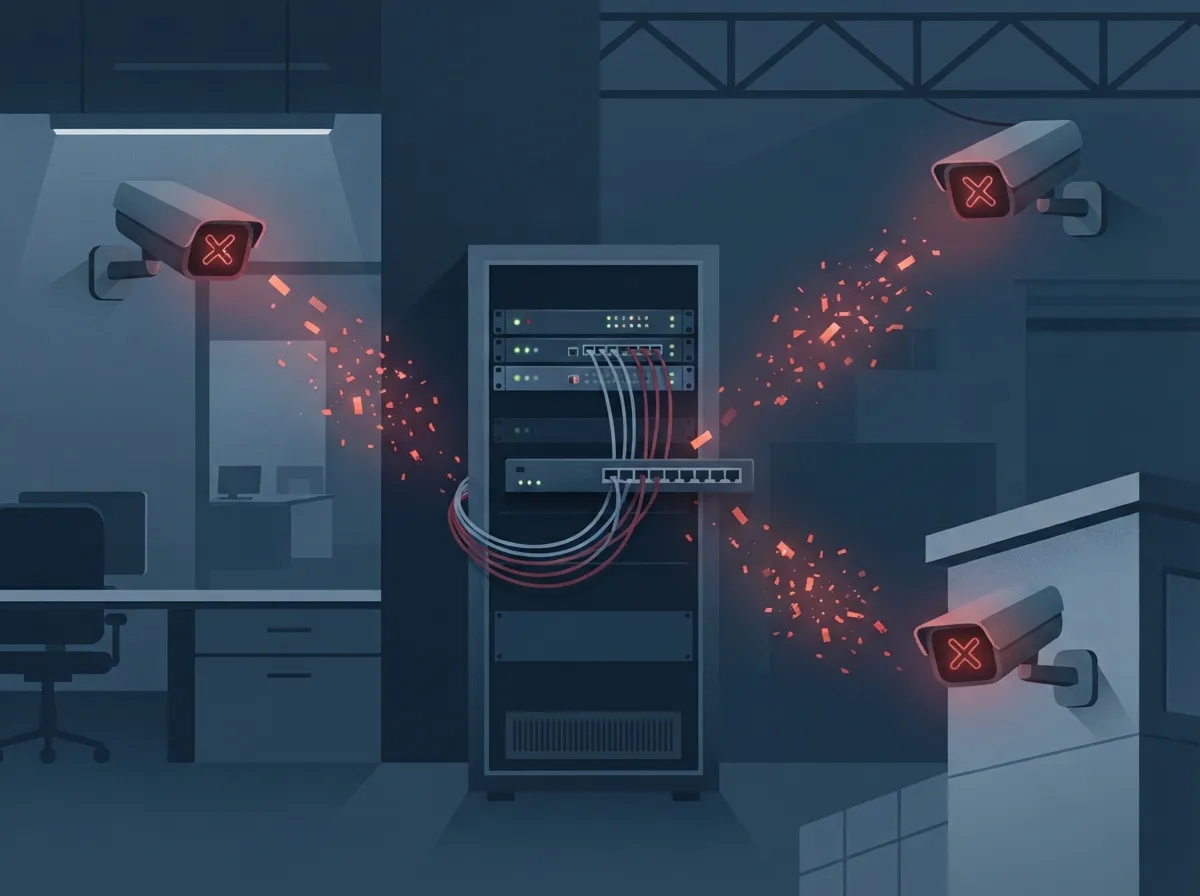
Cloud cameras depend on a few things working together at once: power, your local network, and a steady internet connection. When one piece breaks down, the whole system can seem broken, even if it’s really just one small link in the chain.
Here are the usual suspects behind camera trouble:
- Power or PoE (Power over Ethernet) interruptions
- Loose or damaged cabling
- Weak or unstable internet connection
- Firewall settings blocking cloud traffic
- Outdated firmware or app versions
- Expired cloud subscriptions or permissions
Since so much depends on your network, having strong, reliable business high speed internet is often the first thing worth checking. A shaky connection causes more camera headaches than almost anything else.
Step-by-Step Cloud Security Camera Troubleshooting Process
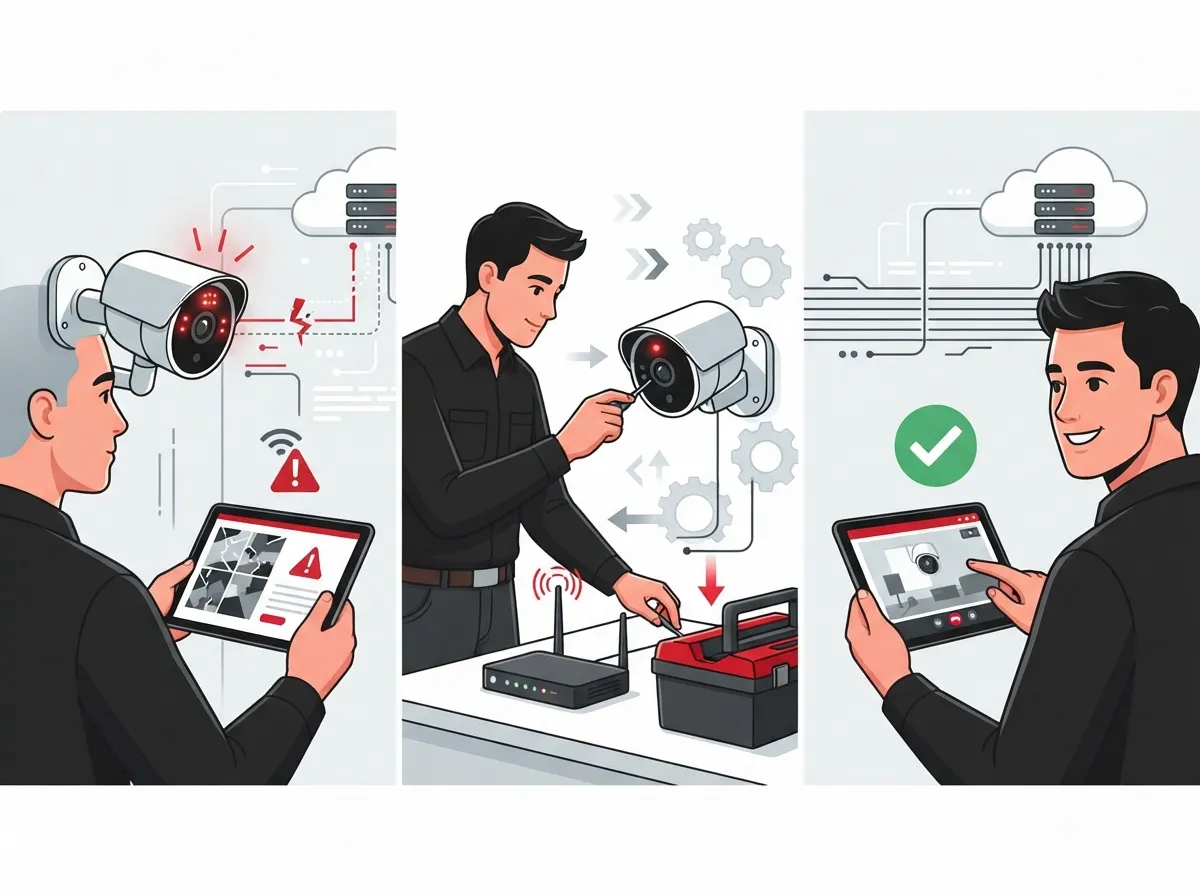
When a camera goes dark, don’t panic. Just work through these steps in order. This is exactly the kind of process our team uses when clients call in with camera issues.
- Check the camera’s power light or PoE injector to confirm it’s getting power.
- Inspect cables and connectors for damage or loose fits.
- Test if the camera works on your local network, even if it’s not reaching the cloud.
- Restart the camera and the network switch or router it connects to.
- Confirm your internet connection is stable and fast enough for video upload.
- Check firewall settings to make sure cloud traffic isn’t being blocked.
- Log into the cloud dashboard to verify your subscription is active.
- Update the camera’s firmware and the app to the latest version.
Working through these steps one at a time helps you figure out exactly where the problem lives. That’s the real secret to solving tech issues quickly instead of guessing.
Local Working, Remote Not Working: What That Tells You
If your camera works fine when you’re standing right next to it, but you can’t see it from your phone at home, that’s a big clue. It usually means the problem sits somewhere between your local network and the cloud server, not the camera itself.
This is a huge time-saver during cloud security camera troubleshooting. It tells you not to waste time swapping out the camera. Instead, look at your router, firewall, or internet service.
Firewall and Network Settings That Block Cloud Cameras
Firewalls are great at keeping bad traffic out. But sometimes they’re a little too good at their job and block your own camera traffic by accident. Cloud cameras need specific outbound ports and domains open to talk to their cloud servers.
Here’s what to check on your network:
- Outbound port access for your camera brand’s cloud service
- Allowed domain or IP address lists in your firewall rules
- Any recent network changes made by your IT provider
- VPN or proxy settings that might interfere with camera traffic
- Router firmware that may need updating
If your business recently upgraded its network solutions, it’s worth double-checking that your camera settings were carried over correctly. New routers or switches sometimes reset old rules without anyone noticing.
Bandwidth and Latency: The Hidden Camera Killers
Cloud cameras are constantly uploading video. That takes real bandwidth, and it adds up fast when you have multiple cameras running at once. If your internet connection is shared with phones, computers, and other devices, cameras can suffer during busy hours.
Here’s a simple breakdown of what affects camera performance most:
| Factor | Impact on Camera Performance | Quick Fix |
|---|---|---|
| Upload bandwidth | Choppy or delayed video, failed uploads | Upgrade internet plan or add dedicated circuit |
| Network congestion | Buffering, dropped connections | Separate VLAN for cameras |
| Latency | Delayed live view, lag in alerts | Use wired connections over Wi-Fi |
| Router quality | Frequent disconnects | Upgrade to business-grade router |
Many businesses find that their internet plan simply wasn’t built for cameras, VoIP phones, and daily operations all at once. If that sounds familiar, our high-speed internet tips for businesses can help you figure out what speed you actually need.
How Much Bandwidth Does a Cloud Camera Really Need?
This depends on resolution and frame rate, but higher-quality video always means more upload demand. A single 1080p camera might need a modest amount of steady upload speed, while a 4K camera streaming constantly needs much more. Multiply that across five, ten, or twenty cameras, and you can see why bandwidth planning matters so much.
Cloud Service and Subscription Issues
Sometimes the camera and network are both working perfectly fine. The real problem is on the cloud provider’s side. This includes expired subscriptions, disabled services, or storage quotas that have been reached.
Here’s what to check when recordings stop appearing:
- Log into your cloud video dashboard and check subscription status.
- Confirm you haven’t hit your storage limit for recorded footage.
- Check the cloud provider’s status page for outages.
- Review user permissions to make sure your account still has access.
- Look at system logs for error messages tied to sync failures.
Many modern cloud video systems include health monitoring tools that flag these problems before you even notice them. Some providers even offer network operations center (NOC) style monitoring that watches your cameras and alerts your IT team automatically.
Firmware and Software Updates: A Simple but Powerful Fix
It’s easy to ignore update notifications, but skipping them is one of the most common reasons cloud cameras stop working right. Vendors release updates to fix bugs, patch security holes, and improve compatibility with new devices.
Make updates part of your regular routine:
- Set a monthly reminder to check for firmware updates
- Update the mobile or desktop app whenever prompted
- Keep your router and network switches updated too
- Document update dates in case you need to troubleshoot later
A few minutes of maintenance each month can save you hours of frustration down the road.
When to Call in the Pros
Some cloud security camera troubleshooting is simple enough to do yourself. But sometimes the problem runs deeper into your network infrastructure, especially if you’re managing cameras across multiple locations or tied into a larger system with VoIP phones and access control.
Consider bringing in help if you notice:
- Cameras going offline repeatedly despite basic fixes
- Multiple locations experiencing the same issue at once
- Slow internet affecting cameras, phones, and daily operations together
- Uncertainty about firewall or network configuration
- Growing pains as you add more cameras or locations
This is where having a single point of contact really pays off. Instead of calling three different vendors and getting three different answers, you get one team that understands your whole setup, from your structured cabling to your internet plan to your camera system itself.
How Structured Cabling Affects Camera Reliability
Believe it or not, old or poorly installed cabling causes a surprising number of camera issues. Loose connections, damaged cables, or outdated wiring standards can lead to inconsistent power and data flow, especially for PoE cameras. Good structured cabling creates a stable foundation that keeps everything running smoothly, from cameras to phones to computers.
Comparing Common Cloud Camera Problems and Fixes
| Problem | Likely Cause | Recommended Fix |
|---|---|---|
| Camera offline remotely, works locally | Network or cloud connection issue | Check firewall, internet, and cloud dashboard |
| Choppy or delayed video | Low bandwidth or high latency | Upgrade internet or use wired connection |
| Recordings not uploading | Storage quota reached or subscription expired | Check cloud storage settings and billing |
| Camera won’t power on | PoE or cabling failure | Inspect cables, test PoE injector or switch |
| App won’t sync with camera | Outdated firmware or app version | Update both camera firmware and app |
Keep this table handy for quick reference the next time something looks off with your system.
Building a Reliable Foundation for Cloud Cameras
The best way to avoid constant troubleshooting is to build your camera system on a strong foundation from day one. That means good internet, smart network setup, and quality installation.
Here are a few smart habits that keep cloud cameras running smoothly long-term:
- Schedule regular check-ins on camera health and cloud storage usage
- Keep a dedicated network segment for security devices
- Choose internet plans with enough upload speed for your camera count
- Work with a provider who understands both networking and video security
- Document your camera setup, including IPs and firmware versions
At Ideal Solutions Provider, we’ve spent over 24 years helping businesses across Tampa and beyond build telecom and security systems that actually work together. From business internet services to cloud video security, we make sure every piece fits, so cloud security camera troubleshooting becomes the exception, not the rule. You can also follow our tips and client stories on Facebook or check out setup walkthroughs on YouTube.
Final Thoughts on Keeping Your Cameras Online
Cloud security camera troubleshooting doesn’t have to feel overwhelming. Most issues trace back to a handful of common culprits: power, network, firewall settings, or cloud subscription status. Work through the basics first, and you’ll solve most problems without breaking a sweat.
But if your cameras keep acting up, or you’re juggling multiple locations and multiple vendors, it might be time for a fresh set of eyes on your whole setup. We’d love to help you build a system that just works, quietly and reliably, in the background of your busy day. Contact us for a free consultation, or call us today to talk through your camera and network needs with a real person who gets it.
FAQs
Q: Why is my cloud security camera offline but working locally?
A: This usually means your camera is fine, but something between your network and the cloud is blocking the connection. Check your firewall settings, internet stability, and cloud subscription status first. It’s a great clue that saves you from swapping out perfectly good equipment!
Q: How do I troubleshoot a cloud security camera connection issue?
A: Start with the basics: check power and cabling, then test if the camera works locally before checking cloud access. Walk through each layer, power, network, firewall, and cloud dashboard, one at a time. It feels methodical, but that’s exactly what makes it work so well.
Q: What firewall ports or domains must be open for cloud cameras?
A: Each camera brand has specific outbound ports and domains it needs to reach its cloud servers. Check your camera manufacturer’s documentation for the exact list, then confirm those are allowed in your firewall rules. Your IT provider can help verify this quickly if you’re not sure.
Q: How much upload bandwidth does a cloud security camera need?
A: It depends on resolution and frame rate, but higher-quality video needs more steady upload speed. A single 1080p camera needs less than a 4K camera streaming constantly. If you’re running many cameras, add up their needs and make sure your internet plan can handle it comfortably.
Q: Why are my cloud camera recordings not uploading?
A: This often points to a full storage quota, an expired subscription, or a weak internet connection struggling to keep up. Log into your cloud dashboard first to rule out account issues. If everything looks fine there, it’s time to check your network’s upload speed and stability.