Key Takeaways
-
Upload bandwidth matters most for remote camera access and cloud recording, so check your upload speed and plan for peak use before buying cameras.
-
Choose your storage model based on needs: cloud suits multi-site central control, on-premises gives local control, and hybrid combines local recording with cloud viewing and backup.
-
Use wired Ethernet with PoE where possible, since it is more stable than Wi-Fi and run extra cable now so you can add cameras later.
-
Lock down security with unique strong passwords, multifactor authentication, encrypted connections, least-privilege user roles, and firmware updates.
-
Never expose recorder or camera admin pages to the public internet, and keep cameras on a separate network from main business data.
-
Plan for privacy rules, footage retention, and total cost of ownership, including storage subscriptions, support, and connectivity, not just camera price.
Picture this: it’s 9 p.m., you’re on the couch, and a small voice in your head asks, “Did anyone lock the back door at the shop?” With remote access security cameras, you don’t have to guess or drive back. You just pull out your phone and look. That kind of peace of mind is why so many businesses are adding network-connected video to their daily operations in 2026.
But here’s the thing. Remote access security cameras are not just cameras. They are part of your business telecom setup. They depend on your internet, your cabling, your network, and your security habits. Get those pieces right, and you have a smooth, reliable view of every location. Get them wrong, and you end up with laggy video, missed footage, or even a security risk.
In this friendly guide, we’ll walk through six practical tips to help you choose, set up, and protect a remote access security camera system. Whether you run one small office or a dozen franchise locations, these tips will help you feel confident about your next step.
What Are Remote Access Security Cameras?
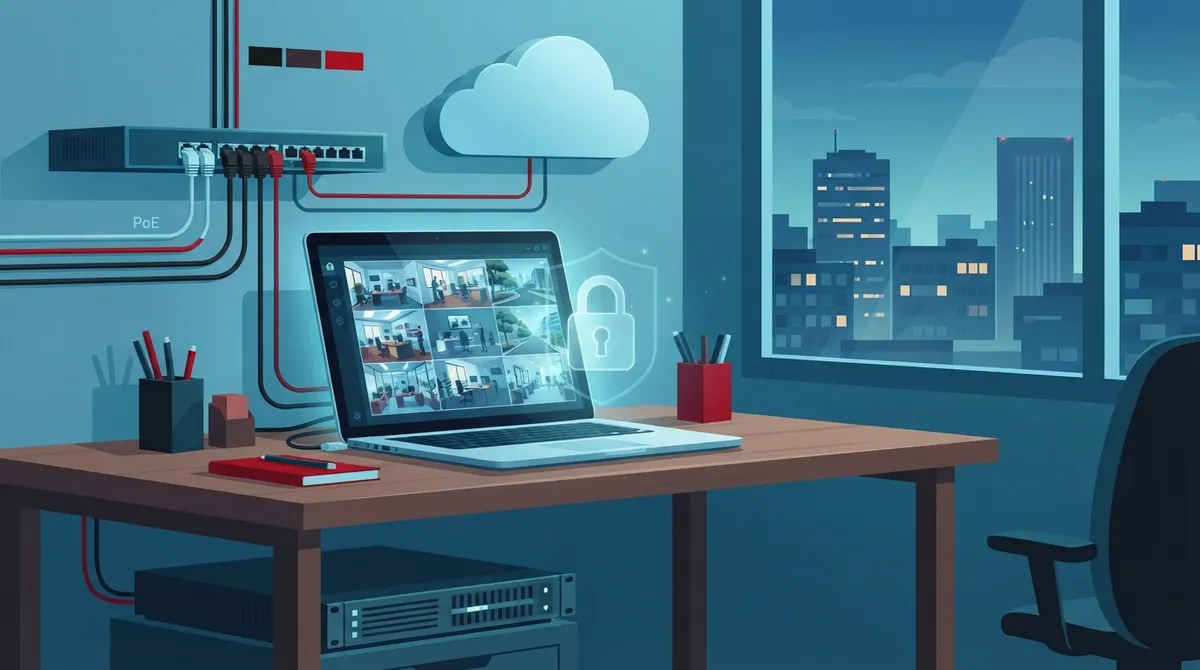
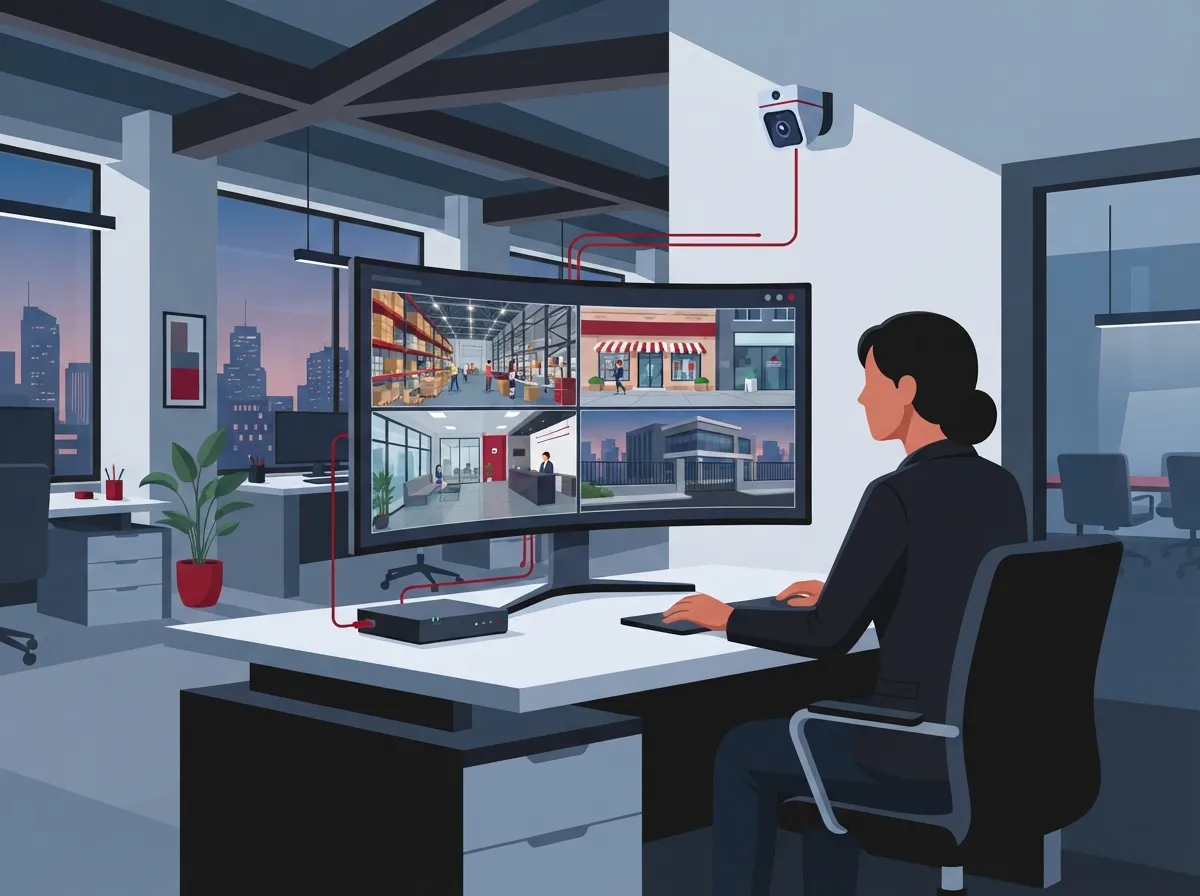
Remote access security cameras are networked IP cameras that let approved users watch live or recorded video from anywhere. You can view footage through a web portal, a mobile app, a video management system (VMS), or a cloud video surveillance service (often called VSaaS).
There are three common ways to deliver that remote access:
- Cloud-managed: Video is managed and often stored through a cloud service, which makes multi-site control simple.
- On-premises: Your own recorder or VMS stores footage locally, giving you more direct control over video and retention.
- Hybrid: Footage is stored on-site, while cloud tools handle viewing, alerts, and backups.
The market keeps growing, too. Grand View Research estimates the global video surveillance market was valued at USD 83.5 billion in 2025 and projects USD 204.7 billion by 2033. That figure covers hardware and software across the whole market, so it’s a big-picture number rather than a count of remote access cameras alone. Still, it shows how common networked video has become.
Tip 1: Start With Your Internet Connection
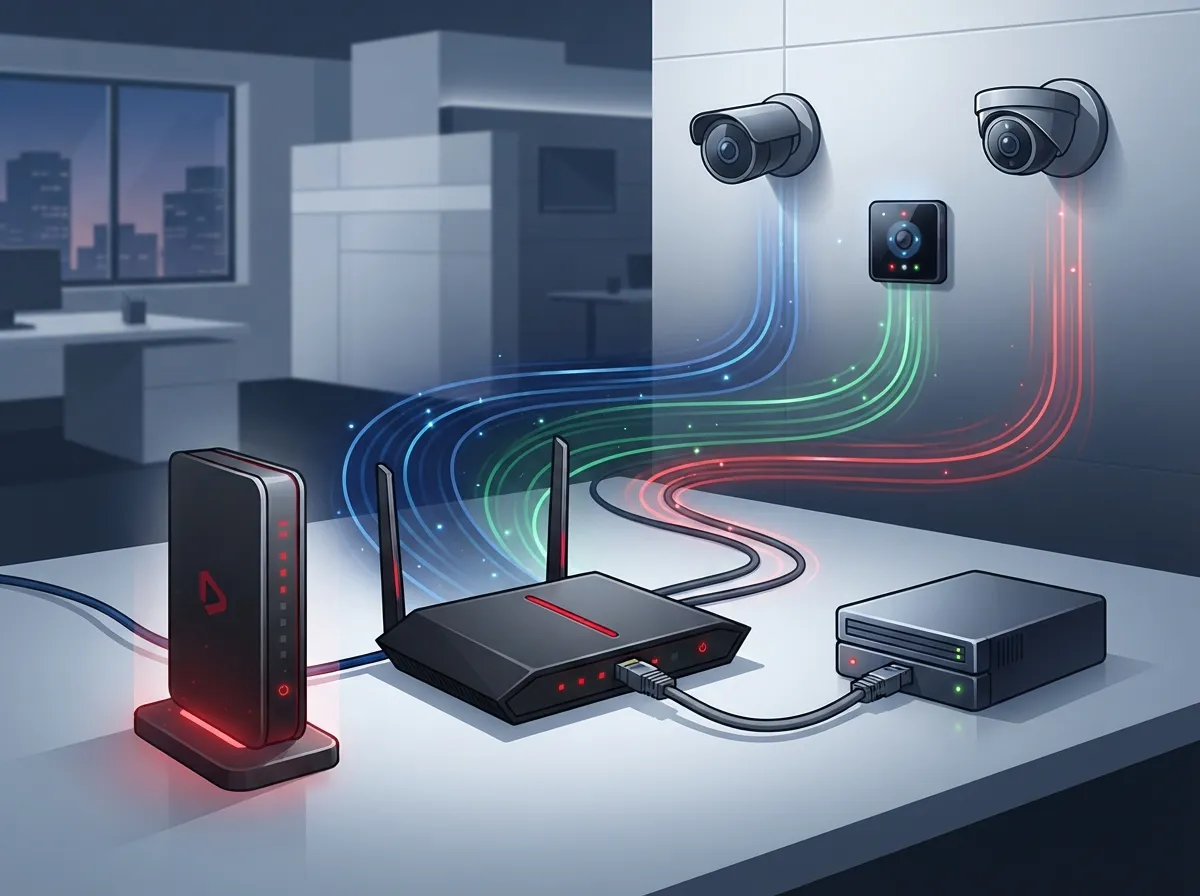
Your cameras are only as good as the connection behind them. Remote viewing and cloud recording both rely on upstream bandwidth, which is the speed your network uses to send data out. Many offices focus on download speed and forget that upload speed matters most for video.
Before you buy a single camera, check these basics:
- Count your cameras. More cameras mean more video streams.
- Check your upload speed. Cloud recording and remote viewing both send data out of your building.
- Consider resolution. Higher-quality video uses more bandwidth.
- Plan for peak use. Remember that phones, video calls, and cameras may all share the same line.
- Think about a backup link. A second connection can keep video flowing if your main line fails.
If you’re not sure what your site needs, our guide on how to choose the right internet speed for your Tampa business is a great place to start. Businesses with heavier video needs may also want to look at dedicated fiber internet, which offers steady, predictable performance.
A Quick Note on Bandwidth
There’s no single magic number for how much bandwidth cameras need. It depends on resolution, frame rate, compression, and how many cameras stream at once. A good installer will estimate this for your exact setup, so you don’t have to guess.
Tip 2: Choose the Right Storage Model
One of the most common questions we hear is, “Do my cameras need cloud storage, or can footage stay on-site?” The honest answer is: either can work. It depends on what matters most to your business.
| Storage Model | Best For | Things to Consider |
|---|---|---|
| Cloud | Multi-site businesses, franchises, teams that want easy central control | Needs solid upload bandwidth; ongoing subscription costs |
| On-premises | Businesses wanting local control over video and retention | Hardware to maintain; remote viewing needs careful, secure setup |
| Hybrid | Businesses wanting local recording plus cloud viewing and backup | More moving parts; best planned by a professional |
Cloud and hybrid systems can make life easier when you manage several locations from one screen. On-site recording gives you more hands-on control. If you want a deeper comparison, read Remote vs. On-Site Video Surveillance: Which Is Right for You? and 6 Key Differences Between Cloud Video Security and DVR Systems.
Also think about how long you need to keep footage. Retention needs vary by industry and location, so decide this early. It affects storage size and total cost.
Tip 3: Build a Strong Cabling Foundation
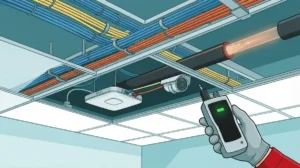
Here’s a tip people often skip: cameras love good cabling. A wired Ethernet connection is usually more stable than Wi-Fi, and many IP cameras can get power through the same cable using Power over Ethernet (PoE). That means fewer outlets, fewer headaches, and cleaner installs.
Good structured cabling gives your cameras a steady path for video, power, and growth. It also makes future upgrades far easier, because you aren’t tearing into walls every time you add a camera.
- Plan for growth. Run extra cable now so you can add cameras later.
- Label everything. Clear labels save hours during troubleshooting.
- Test your runs. Certified cabling helps catch problems before they affect video.
- Protect outdoor runs. Weather and sunlight can wear down the wrong materials.
To learn more, check out 13 Ways Structured Cabling Supports VoIP and Cameras or our overview of structured cabling services.
Tip 4: Lock Down Your Cybersecurity
This one is important, so let’s be clear and kind about it. Remote access is wonderful, but it also widens your system’s attack surface. Anything reachable from the internet needs thoughtful protection. The good news is that a few smart habits go a long way.
Here are the key security practices to look for or put in place:
- Use unique, strong passwords. Never keep the factory default login.
- Turn on multifactor authentication. Use it wherever your system offers it.
- Set user roles carefully. Give each person only the access they need.
- Use encrypted connections. Protect video as it travels across the network.
- Update firmware regularly. Updates often fix security gaps.
- Segment your network. Keep cameras on their own network, apart from your main business data.
- Avoid exposing admin pages. Don’t leave camera or recorder admin screens open to the public internet.
Many businesses find this part easier with a pro on their side. If you’re comparing options, our article on how secure cloud video storage is for your business explains what to ask providers. You may also like How to Keep Cloud Security Footage Safe in 2026.
Tip 5: Pick Cameras That Match Your Real Needs
It’s tempting to buy the fanciest camera on the shelf. But the best camera is the one that fits your space and goals. Before you commit, think through what you truly need to see.
Here’s a simple checklist to guide your choice:
- Video quality: Can you clearly see faces, license plates, or product shelves, depending on your goal?
- Low-light performance: Will the camera still work well at night or in dim hallways?
- Field of view: How much area does each camera need to cover?
- Weather resistance: Outdoor cameras must handle Florida heat, rain, and humidity.
- Power and cabling: Is PoE available, and do cable runs reach every spot?
- Integration: Can your cameras work with access control or alarms?
- Analytics: Choose smart features only if they serve a clear business purpose.
Not sure how many cameras make sense? Take a look at 10 Factors That Decide How Many Security Cameras You Need. And if you want to see what a connected setup looks like, explore our cloud video security and cloud based access control options, which can work together nicely.
Using Remote Viewing With Purpose
Remote viewing shines for after-hours checks, multi-site oversight, loss prevention, and faster incident response. A good rule of thumb is to decide the goal first, then choose the features. That keeps your system useful instead of overwhelming.
Curious about phone access? You can read Can I Monitor My Tampa Business Security Cameras From My Phone? for a friendly walkthrough.
Tip 6: Plan for Privacy, Compliance, and Total Cost
The last tip is the one that keeps surprises away. Remote access security cameras bring privacy responsibilities and ongoing costs, and it’s far easier to plan for both now than to fix them later.
Privacy and Compliance
Rules vary by location and industry, so it’s smart to confirm what applies to you. As a starting point, define these things in writing:
- Where cameras may and may not be placed
- Who can view live and recorded footage
- How long recordings are kept
- How access to footage is logged
- How employees, customers, or visitors are notified, when required
Total Cost of Ownership
The price of the camera is only one slice of the pie. Here’s a quick look at what to budget for:
| Cost Area | What to Think About |
|---|---|
| Cameras and hardware | Camera count, quality, outdoor ratings, mounts |
| Cabling and installation | Cable runs, PoE switches, labor, permits where needed |
| Connectivity | Upload bandwidth, backup internet, possible cellular failover |
| Storage and subscriptions | Cloud fees, local storage, retention length |
| Support and maintenance | Firmware updates, monitoring, repairs, service availability |
For a closer look at pricing, see How to Budget for Commercial Video Surveillance in Tampa FL.
Why a Single Partner Makes This Easier
If all of this feels like a lot of moving parts, you’re not imagining it. Cameras touch your internet, cabling, network, and security all at once. That’s why many businesses prefer one partner instead of juggling several vendors.
Ideal Solutions Provider is a Tampa-based telecom and IT partner with over 24 years of experience. They work with 35+ vetted suppliers and handle everything from consultation to installation and ongoing support. For IT managers, office managers, and franchise operators, that single point of contact can save a lot of time and stress.
Wrapping It Up
Remote access security cameras can give you real peace of mind, but only when the whole system is built with care. To recap, here are the six tips:
- Start with a strong internet connection.
- Choose the right storage model.
- Build a solid cabling foundation.
- Lock down your cybersecurity.
- Pick cameras that match your real needs.
- Plan for privacy, compliance, and total cost.
Ready to see your business with fresh eyes? Contact us for a friendly, no-pressure consultation, or call us to talk through your setup. We’d love to help you build a camera system that works as hard as you do.
Want to keep learning? Follow along on YouTube, Facebook, or Instagram for more helpful business telecom tips. And if you’re comparing connection options, understanding your Internet Service Provider choices is a smart first step.
FAQs
Q: What are remote access security cameras for businesses?
A: They’re networked IP cameras that let approved users watch live or recorded video from anywhere through a mobile app, web portal, or video management system. They’re a great fit for multi-site operations, after-hours checks, and quick incident response.
Q: Do business security cameras need cloud storage, or can footage stay on-site?
A: Either option can work, and many businesses choose a hybrid setup. Cloud storage makes multi-site management easy, while on-site recording gives you more local control over video and retention. The best choice depends on your bandwidth, budget, and goals.
Q: How do businesses securely access security cameras remotely?
A: Use unique passwords, multifactor authentication, encrypted connections, and least-privilege user roles. Keep firmware updated, separate cameras on their own network, and never expose recorder admin pages directly to the public internet.
Q: How much internet bandwidth do remote security cameras need?
A: It varies with camera count, resolution, frame rate, and compression. Upload speed matters most for remote viewing and cloud recording, so a professional assessment of your network is the best way to get a reliable answer.
Q: Can I monitor cameras at multiple locations from one system?
A: Yes! Cloud-managed and hybrid systems are built for this. You can view and manage every site from one dashboard, which is a big help for franchise owners and growing companies.