

Key Takeaways
-
Test your failover plan regularly by unplugging the primary line during a quiet window and recording what happens to phones, payments, and cameras, since untested backups often fail.
-
Two ISP contracts do not guarantee separate paths; ask each carrier where its lines enter your building and what shared ducts, poles, or backhaul they use.
-
Pair a wired primary with a cellular (LTE or 5G) backup so a single cable cut cannot take out both connections, and confirm signal strength where the equipment sits.
-
Define what counts as 'down' using latency, packet loss, and jitter thresholds, so the system switches when quality degrades, not only when the cable fails.
-
Size the backup for essential traffic and set QoS priorities so payments and voice calls win bandwidth over large background transfers.
-
Protect the whole chain: add UPS battery backup to core gear and include security cameras and door access in your failover plan.
Picture this: it is a busy Tuesday morning. Your phones go quiet, the card readers freeze, and your team stares at spinning wheels on every screen. Someone says, “Don’t worry, we have a backup internet line!” Then the backup does not work either. Sound painful? It happens more often than you would think.
The good news is that most failover failures come from small, fixable mistakes. A backup plan only helps when it is built, sized, and tested the right way. In this friendly guide, we will walk through 15 common mistakes that quietly weaken network failover solutions for small offices, growing companies, and multi-location franchises. Along the way, you will learn simple fixes you can use right away in 2026.
Whether you run a five-person shop in Tampa or manage IT for a dozen sites, you will find practical steps here. Grab a coffee, and let’s make sure your backup is ready when you need it.
What Network Failover Solutions Actually Do
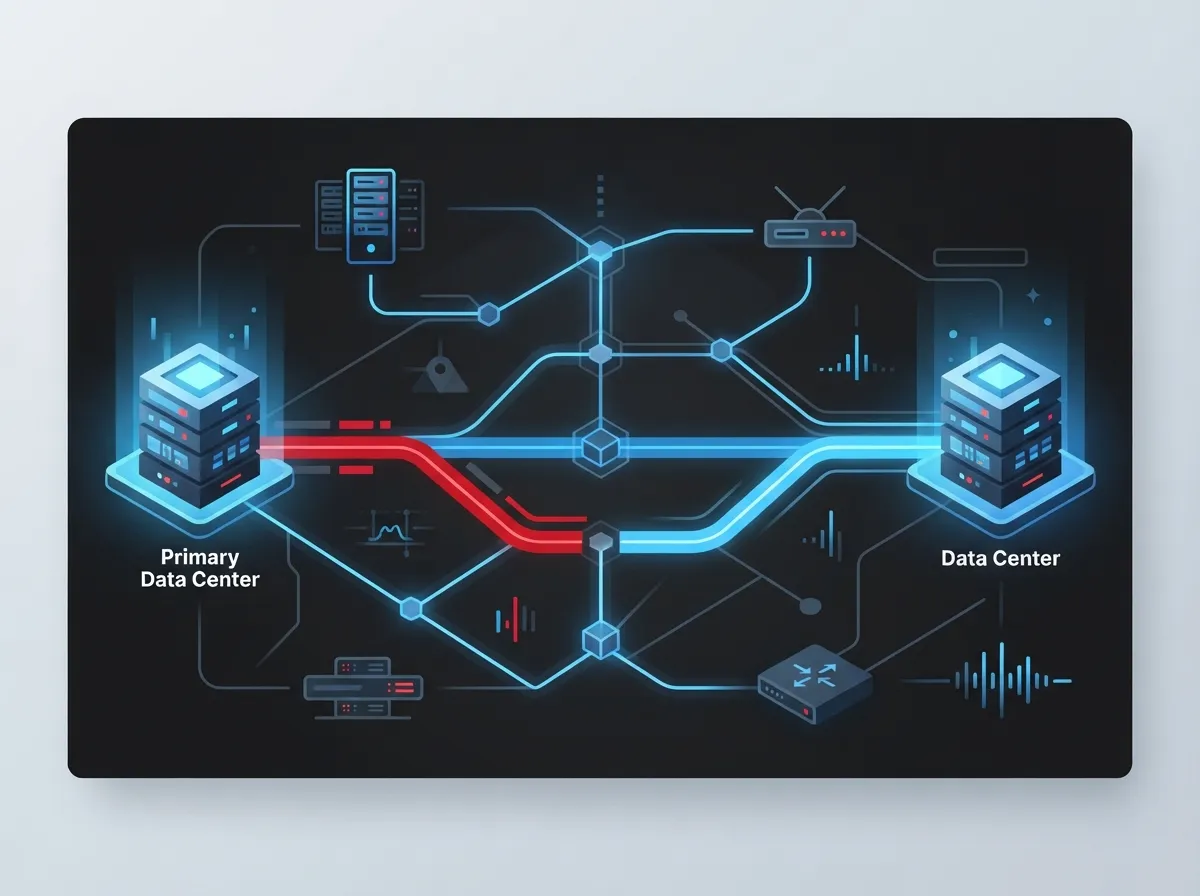
Network failover means your traffic moves to a backup path when the main path fails or gets too slow. That backup can be a second wired line, a cellular link, or even satellite in remote spots. The goal is simple: keep your business reachable.
Good failover can protect many things at once:
- Internet access and cloud apps
- VoIP phone calls
- Point-of-sale and payment systems
- Links between your business sites
- Cloud security cameras and door access
Think of it like a spare tire. It only helps if it has air, fits your car, and you know how to put it on. The mistakes below are mostly about the “air, fit, and practice” part.
The 15 Mistakes (and Easy Fixes)
Mistake 1: Skipping the Business Impact Conversation
Many teams start by shopping for gear. A better start is asking, “What breaks if we go offline for an hour?” Phones, payments, scheduling, and cameras all matter differently to each business.
Fix: List your top five must-have services. Rank them by cost per hour of downtime. Let that list guide every choice that follows.
Mistake 2: Trusting a Different Provider Name as Proof of Diversity
This one trips up even smart IT folks. Two Internet Service Provider names on a contract do not guarantee two separate paths. Providers can share ducts, poles, local exchanges, or backhaul. One construction crew with a backhoe can take out both.
CISA’s communications resiliency guidance points to route diversity, redundancy, and protective or restorative measures as key ideas. It also advises checking whether providers share facilities. Ask each carrier where its lines enter your building and what upstream paths it uses.
Fix: Request written details on entrance points and shared infrastructure. A knowledgeable partner can help you compare carriers side by side. For more on this topic, see our guide on automatic internet failover tips for business.
Mistake 3: Using Only Wired Backups
A second cable line feels safe. But if both lines run through the same street trench, one cut ends the party. Cellular LTE or 5G can avoid a physical cable cut because it travels a totally different route.
Fix: Pair a wired primary with a cellular backup for better path variety. In locations with limited service, satellite can fill the gap.
Mistake 4: Buying a Backup That Is Too Small
A tiny backup might keep email alive but choke on video calls and cloud apps. When everyone piles onto a slow link, things get ugly fast.
Fix: Measure what your team really uses at peak. Size the backup for essential traffic, even if it is smaller than your main line. If you are unsure how much speed you need, our post on what to look for in a business internet provider can help.
Mistake 5: Ignoring Cellular Signal and Data Limits
Cellular backup is handy, but only when the signal is strong and the plan has enough data. A backup stuck in a back office with weak bars will struggle. A plan with a tiny data cap can run out mid-outage.
Fix: Test signal strength in the actual install spot. Place antennas near windows or on exterior walls when needed. Confirm data allowances and any throttling rules before you sign.
Mistake 6: Forgetting the Rest of the Chain
Your internet circuit is only one link. Edge routers, firewalls, switches, cabling, power, DNS, and login systems can each be a single point of failure. A perfect second circuit does not help if one router powers everything.
Fix: Walk the path from a user’s desk to the cloud. Mark every spot where one failure stops the show. Healthy cabling matters here too, so review cabling redundancy for offices.
Mistake 7: Skipping Backup Power
Florida storms are no joke. If the power goes out, your modems, routers, and switches go dark, no matter how great your backup line is.
Fix: Put battery backup units (UPS) on your core network gear. Keep them sized for at least enough runtime to ride out short outages and switch cleanly.
Mistake 8: Never Defining What “Down” Means
Is your link “down” when it fully drops, or when it gets slow and glitchy? Many failures are gray, not black and white. A line with heavy packet loss can ruin voice calls while still showing “connected.”
Fix: Set clear thresholds for latency, packet loss, and jitter. Your system should switch when quality drops below those numbers, not only when the cable fails.
Mistake 9: Mixing Up Dual-WAN and SD-WAN
These two get confused all the time. Here is a simple comparison:
| Feature | Dual-WAN Router | SD-WAN |
|---|---|---|
| Main job | Switches between two connections | Chooses the best path by policy and live conditions |
| Path checks | Basic up/down monitoring | Measures latency, loss, and jitter |
| Traffic rules | Limited | Per-application policies |
| Backup use | Often idle until needed | Can use links actively together |
| Best for | Single small sites | Multi-site and app-heavy networks |
Fix: Match the tool to your needs. A single small office may do great with dual-WAN. Growing multi-site teams often benefit from SD-WAN. Learn more in what SD-WAN services are and whether your business needs them.
Mistake 10: Not Planning for Voice Calls
When failover happens, active VoIP calls and some sessions may drop for a moment. Nobody enjoys a call that cuts off mid-sentence with a customer.
Fix: Ask how your system handles live sessions during a switch. Set voice traffic as top priority on the backup link. Also check that your phone system can reroute calls if the whole site goes dark. Our look at how reliable VoIP is for business explains more.
Mistake 11: Forgetting Traffic Priorities
Your backup may be smaller than your main line. If everything fights for space, payments and calls can lose to a software update.
Fix: Use quality-of-service rules. Rank payment systems, voice, and key cloud apps first. Let low-priority stuff, like big file backups, wait.
Mistake 12: Having No Plan for Failback
Switching to the backup is half the story. What happens when the main line returns? Flapping back and forth can cause more trouble than the outage.
Fix: Set a short “hold-down” timer so traffic returns only after the primary line stays healthy for a set time. Decide whether returning should happen automatically or on a schedule.
Mistake 13: Never Testing the Setup
This is the big one. A backup that has never been tested is a hope, not a plan. Settings drift, plans expire, and equipment changes over time.
Fix: Run a planned failover test on a regular schedule. Unplug the primary on purpose during a quiet window. Watch what happens to phones, payments, and cameras. Write down the results.
Mistake 14: Leaving Out Security Cameras and Door Access
Cloud cameras and cloud access control rely on internet connections to stream video, sync users, and send alerts. When the connection drops, you may lose remote views or door updates at the worst moment.
Fix: Include these systems in your failover plan. Check what each device does offline, and make sure your backup link has room for them. Our article on why cloud-based security systems fail without fast internet goes deeper, and cloud access control disaster recovery musts covers door systems.
Mistake 15: Doing It Alone Across Many Vendors
Juggling several carriers, a router vendor, a phone company, and a camera installer can leave gaps no one owns. When something breaks, everyone points at someone else.
Fix: Work with one accountable partner who looks at the whole picture. Ideal Solutions Provider, a Tampa-based telecom and IT partner with over 24 years of experience, compares options across 35+ vetted suppliers and handles consultation, installation, and ongoing support. That single point of contact can save a lot of finger-pointing.
Quick Comparison of Common Backup Paths
| Backup Type | Strengths | Watch-Outs |
|---|---|---|
| Second wired broadband or fiber | Strong speed, steady quality | May share routes with the primary |
| Different ISP wired line | Provider variety | Shared ducts or backhaul possible |
| LTE or 5G cellular | Avoids cable cuts, quick to deploy | Signal strength, data caps |
| Satellite | Works where terrestrial service is thin | Higher delay, cost can be higher |
Real-world use shows the value of cellular backup. Ericsson Cradlepoint reports that T-Mobile used cellular failover to support connectivity at more than 5,000 storefronts. Keep in mind that is a vendor-published example, not an independent industry-wide reliability number. Still, it shows how widely this approach is used by large, multi-site brands.
A Simple 5-Step Plan to Build Your Failover
Ready to put this into action? Follow these steps:
- Map your risks. List critical apps, sites, and the cost of downtime.
- Check path diversity. Confirm entrance points and shared infrastructure for each carrier.
- Choose your backup type. Pick wired, cellular, satellite, or a mix, sized for essential traffic.
- Configure rules. Set thresholds, priorities, and failback timers.
- Test and document. Run planned tests, record results, and update the plan after any change.
Tips by Reader Type
Small Business Owners and Office Managers
You do not need a giant setup. A dual-WAN router with a cellular backup and a UPS covers many small offices. Test it twice a year and keep a printed cheat sheet by the router so anyone can check status.
IT Managers and Mid-Sized Teams
Add monitoring and alerts so you know the moment a link degrades. Review network infrastructure audit steps to find hidden single points of failure.
Franchise Operators
Consistency wins. Use a standard failover design at every location so any site can be supported the same way. Cellular backup helps when sites sit in very different buildings and areas. Our guide to multi-location telecom solutions can help you plan.
How to Pick the Right Solution
When comparing options, weigh these points side by side:
- Connection diversity and real path separation
- Bandwidth, latency, and coverage at your address
- Data limits on cellular plans
- Equipment features, such as monitoring and policy controls
- Support hours and response times
- Total cost, including hardware, plans, and installation
It also helps to review the basics of choosing a business internet circuit and what network architecture services include. Good structured cabling under it all keeps your failover gear connected cleanly.
Keep Learning and Stay Connected
Want to see real setups and tips? Follow Ideal Solutions Provider on YouTube, Facebook, and Instagram. You can also explore their business network solutions to see how failover fits into a bigger plan.
Wrap-Up: Make Your Backup Count
Strong network failover solutions are not about buying the fanciest box. They come from real path diversity, right-sized capacity, backup power, smart rules, and regular testing. Fix the mistakes above, and your team stays connected even when the unexpected hits.
If you would like a friendly second opinion, we would love to help. Contact us for a free review of your current setup, or call us to talk through your options with a team that has been doing this for over 24 years.
FAQs
Q: What is network failover for a business?
A: Network failover is a setup that automatically moves your traffic to a backup connection or device when your main one fails or gets too slow. It helps keep internet, cloud apps, phones, and payment systems running. Think of it as a safety net for your daily work.
Q: Is 4G or 5G a good backup internet connection for a business?
A: Yes, it often is! Cellular can avoid a cut cable, since it travels a different route than your wired line. Just make sure you have a strong signal where the equipment sits and a data plan big enough to handle an outage.
Q: How can I make sure two internet connections use diverse routes?
A: Ask each provider where its lines enter your building and what upstream paths or shared facilities it uses. Different provider names do not always mean different paths, since ducts, poles, or backhaul can be shared. Pairing a wired line with cellular is another easy way to boost true diversity.
Q: How often should a business test its network failover solution?
A: A good rule is to run a planned test at least a couple of times a year, and again after any big change to your network or plans. Unplug the main line during a quiet window and watch phones, payments, and cameras. Writing down what you learn makes each test even more useful.
Q: What is the difference between dual-WAN failover and SD-WAN?
A: A dual-WAN router watches two connections and switches between them if one fails. SD-WAN goes further by measuring things like latency, packet loss, and jitter, then picking the best path for each app. Small single-site offices often do well with dual-WAN, while multi-site teams may prefer SD-WAN.