Key Takeaways
-
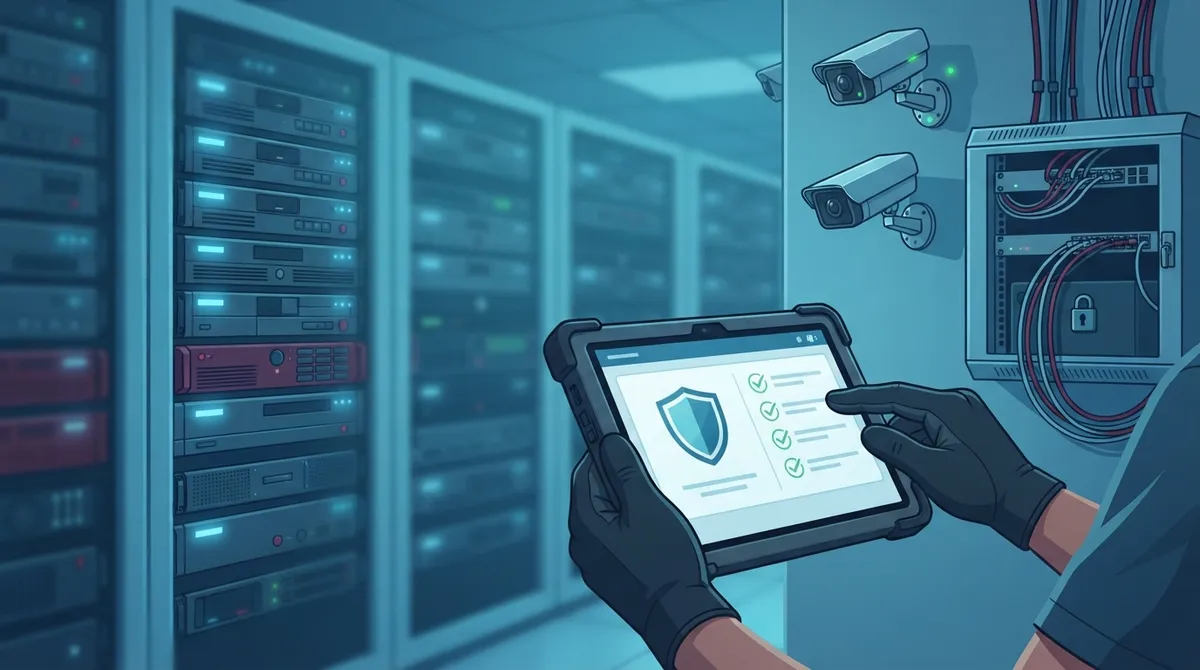
Monitor your recorder and cameras regularly, since a device can go offline for days without anyone noticing and leave you with no footage when you need it.
-
Build a simple update schedule: review vendor security advisories monthly, install routine updates quarterly, and apply critical security patches as soon as they've been tested.
-
Put ownership of updates in writing, using a service-level agreement that names who monitors the system, who installs updates, and how fast issues are fixed.
-
Roll out updates safely by backing up settings, testing on one device first, scheduling during quiet hours, and updating in small groups so not all cameras go offline at once.
-
Protect the network by placing cameras on a separate VLAN, avoiding open internet ports, changing default passwords, and enabling multifactor authentication where supported.
-
When a camera or recorder reaches end of support, isolate it on a separate network, tighten access, and plan a phased replacement before the device becomes an unpatched risk.
Picture this: it’s Monday morning, and you need to pull footage from Friday night. You open your camera app, and… nothing. The recorder has been offline for days. Nobody noticed. Sound familiar? You’re not alone, and the good news is that it’s a very fixable problem.
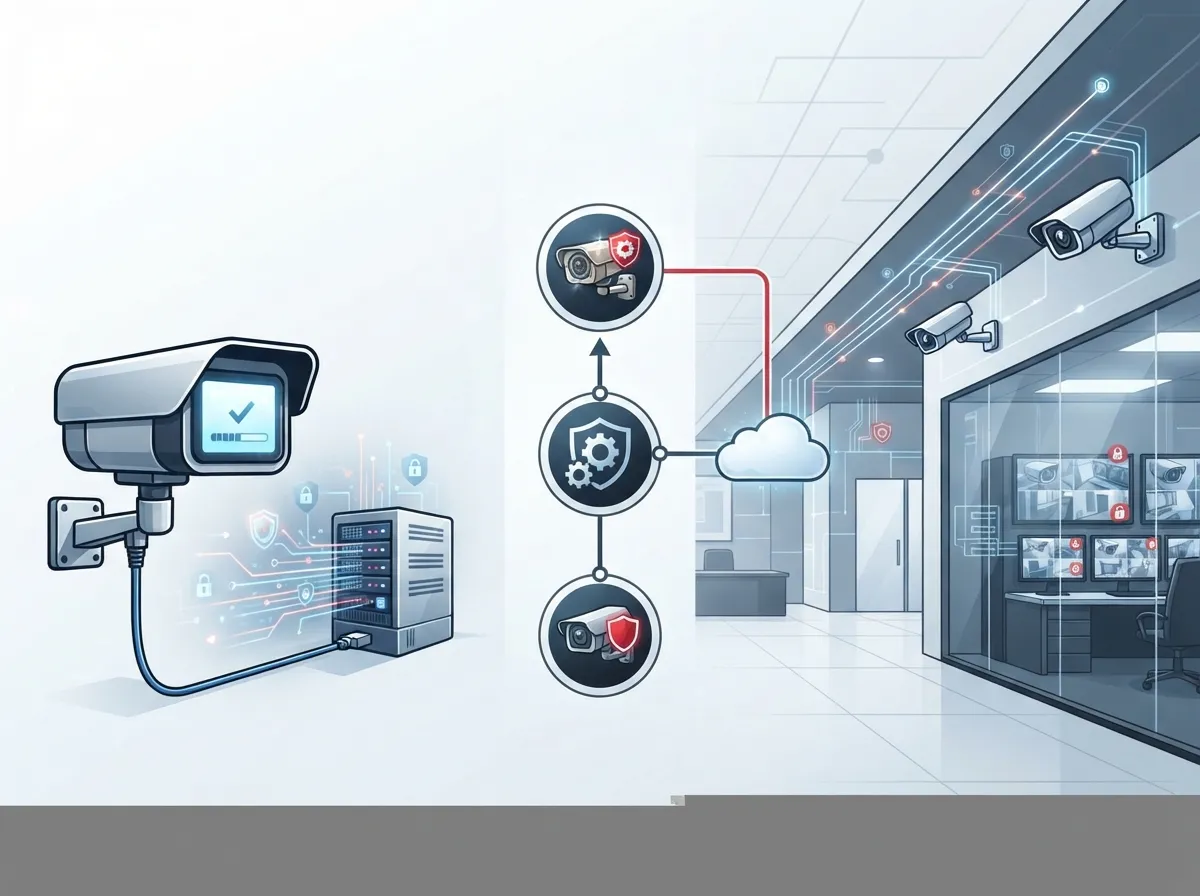
Security cameras aren’t a “set it and forget it” purchase. Like your phones and internet, they need regular care. That’s where security camera system updates and support come in. Firmware patches, software upgrades, network checks, and a clear support plan keep your cameras recording and your data safe.
Whether you run a small shop in Tampa or manage dozens of franchise locations, this guide walks you through what updates really cover, who should handle them, and how to build a simple routine. We’ll keep it friendly and practical, so you can feel confident about your next steps.
What Does a Security Camera System Actually Include?
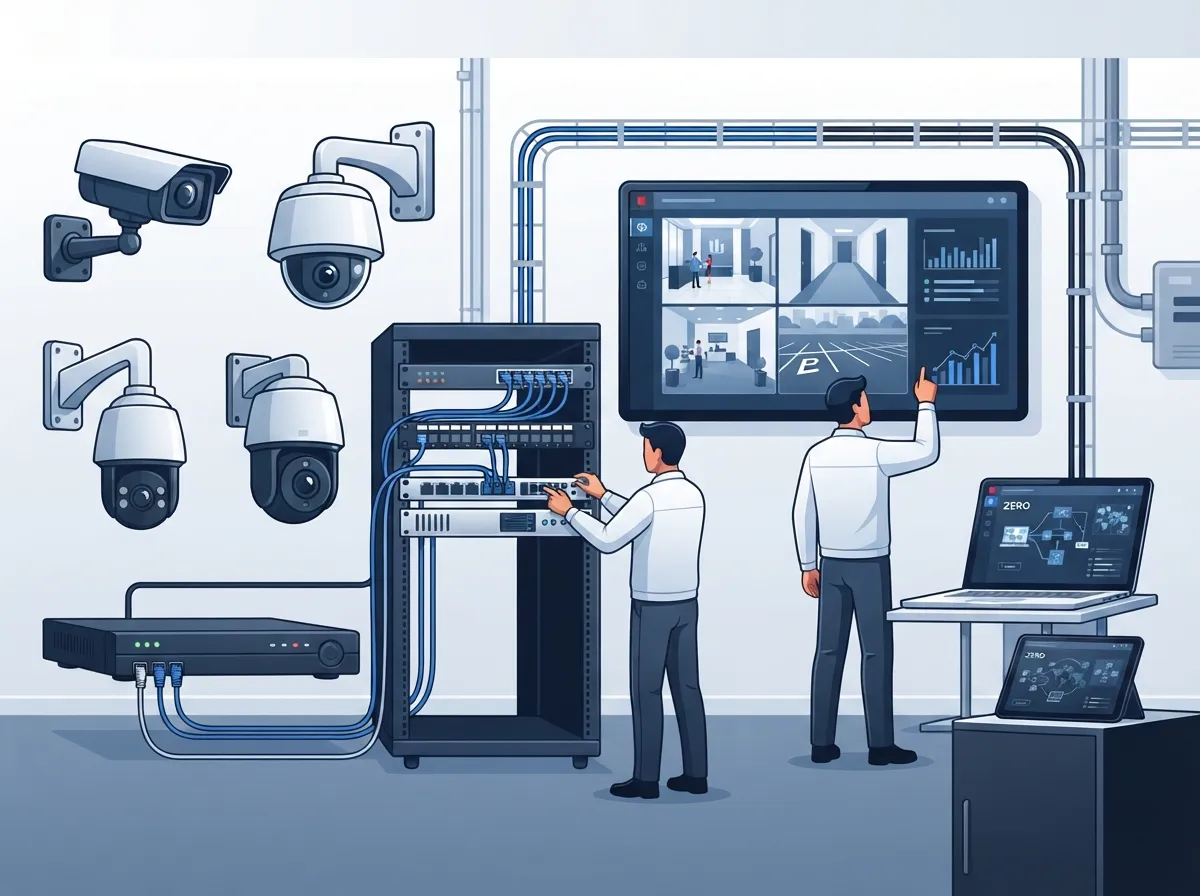
Many people think of a security system as just the cameras on the wall. In reality, it’s a small ecosystem. Every piece may need updates, and every piece can be a weak spot if ignored.
A typical business system can include:
- IP cameras that capture video and send it over your network
- Network video recorders (NVRs) that store footage on-site
- Video management software (VMS) that lets you view, search, and export video
- Cloud services that handle storage, alerts, and remote access
- Mobile apps for checking in from your phone
- Network gear like switches, routers, and Wi-Fi access points
Good security camera system updates and support cover all of these parts, not just camera firmware. If your switch fails or your internet drops, your cameras can’t do their job. That’s why telecom and security belong together. If you want a refresher on the basics, our post on what security cameras really do for your business is a great starting point.
Why Do Camera Updates Matter So Much?
Updates can feel like a chore. But skipping them is a bit like never changing the oil in your car. Everything seems fine until it isn’t.
Here’s what regular updates help you do:
- Close security gaps. Makers release patches when they find weaknesses that hackers could use.
- Improve reliability. Bug fixes can stop random reboots, dropped feeds, and playback errors.
- Add useful features. New releases often bring better alerts, smarter search, or sharper video.
- Stay compatible. Phones, apps, and browsers change. Your system needs to keep up.
The experts agree on this. NIST guidance on connected (IoT) devices lists software updates and ongoing help from the maker or support provider as key security capabilities. It also suggests that organizations decide in advance how updates are checked for authenticity, started, announced, and tested for side effects. That’s a smart way to think about your own cameras, too.
Keep in mind that NIST’s catalog is guidance, especially for federal buying. It’s not a camera-specific rule. Still, it gives any business a solid checklist to borrow from.
How Often Should You Update Security Camera Firmware?
This is one of the most common questions we hear, and the honest answer is: it depends on your equipment and your maker. There’s no single magic number. But there is a simple rhythm that works well for most businesses.
A Simple Update Schedule
| Task | Suggested Timing | Why It Matters |
|---|---|---|
| Review vendor security advisories | Monthly | Catch urgent patches early |
| Install critical security patches | As soon as practical after testing | Reduces exposure to known threats |
| Routine firmware and software updates | Quarterly or as releases arrive | Keeps features and compatibility current |
| Full system health check | Quarterly | Finds failing drives, offline cameras, and weak connections |
| Credential and access review | Twice a year | Removes old users and weak passwords |
| Lifecycle and end-of-support review | Annually | Plans replacements before devices go unsupported |
Treat this as a starting point and adjust it to your maker’s advice. If you use cloud-managed cameras, many updates happen automatically, which takes a lot of work off your plate. You’ll find more on that in our guide to the key differences between cloud video security and DVR systems.
Who Is Responsible for Updating Your Cameras?
Here’s where things get tricky. The installer sets up the system. The manufacturer writes the updates. Your internet provider handles the connection. So who actually makes sure the updates get done?
Often, the answer is: nobody. Each party assumes someone else has it covered. That gap is where problems hide.
The fix is simple. Decide up front who owns each job, and write it down. A clear support agreement, often called a service-level agreement (SLA), should spell out:
- Who monitors the system and how often
- Who installs firmware and software updates
- How fast they respond when something breaks
- Who talks to the camera or software maker when escalation is needed
- What happens after hours or on holidays
A telecom or managed-service partner can take on much of this. They can help with installation, network setup, remote monitoring, firmware coordination, troubleshooting, user access, and escalation to the manufacturer. That’s a big relief for office managers and small business owners who would rather run their business than chase vendors. Our article on how to choose a managed service provider for your business telecom can help you pick the right fit.
How Can You Update Cameras Without Losing Recordings?
Nobody wants a gap in their footage because of an update. The trick is a little planning. Updates can sometimes cause compatibility or availability issues, so a careful approach pays off.
A Safe Update Process
Follow these steps for smoother updates:
- Take inventory. List every camera, recorder, and software version you run.
- Read the release notes. Confirm the update supports your exact hardware model.
- Back up your settings. Save configurations so you can restore them if needed.
- Test first. If you have many devices, try the update on one camera before rolling it out.
- Pick a quiet window. Schedule updates for low-traffic hours, like early morning or after closing.
- Stage the rollout. Update in small groups so you never take every camera offline at once.
- Keep a rollback option. Where available, know how to return to the earlier version.
- Verify afterward. Check the results using the list in the next section.
For multi-location franchise operators, this staged approach is especially helpful. You can update one site, confirm it works, then move on to the next. If you manage several sites, take a look at our guide to multi-location cloud surveillance for more ideas.
How Do You Know an Update Installed Successfully?
Seeing “update complete” on a screen is nice, but it’s not proof that everything works. A quick checklist saves you from nasty surprises later.
After any update, confirm that:
- The device shows the new firmware or software version number
- Every camera is online and streaming live video
- Recording is active and new footage is being saved
- Playback works, and you can search and export clips
- Motion alerts and notifications still arrive
- Remote viewing works from the mobile app and web browser
- Time and date settings are still correct
Make it a habit to log what you updated, when, and who did it. A simple spreadsheet works fine. If something odd shows up a week later, that log can save hours of guessing.
How Do You Secure Cameras on a Business Network?
Updates are only one layer. How your cameras connect to your network matters just as much. Guidance from CISA, the US cybersecurity agency, for connected operational technology stresses a few simple ideas: keep devices off the open internet, put them behind firewalls, separate them from your main business network, and use secure remote access like a well-maintained VPN when you need to log in from afar.
Here’s how to put that into practice:
- Segment your network. Keep cameras on their own VLAN or separate network, away from point-of-sale systems and office computers.
- Avoid direct internet exposure. Don’t open ports on your router so cameras can be reached from anywhere.
- Change default passwords. Use strong, unique credentials for every device and account.
- Turn on multifactor authentication wherever your system supports it.
- Use least-privilege access. Give each person only the access their job needs.
- Use encrypted connections for viewing and storage.
- Remove unused accounts as soon as employees leave.
A solid foundation helps all of this work. Clean wiring and a well-planned network make cameras more stable and easier to update. See how structured cabling supports VoIP phones and security cameras for a closer look. And if you’re curious about the standard, here’s a helpful overview of structured cabling.
What Should a Support Plan Include?
Think of a support plan as your safety net. It turns “we hope it works” into “we know who to call.” A strong plan for security camera system updates and support usually covers these areas:
| Support Area | What It Covers |
|---|---|
| Inventory and lifecycle tracking | Device models, serial numbers, firmware versions, warranty and end-of-support dates |
| Patch and update management | Reviewing advisories, testing, scheduling, installing, and verifying updates |
| Health monitoring | Alerts for offline cameras, full or failing storage, and network problems |
| Access management | User accounts, permissions, strong passwords, and multifactor authentication |
| Network security | Segmentation, firewall rules, encrypted connections, secure remote access |
| Retention-policy review | Checking that footage is kept as long as your business and legal needs require |
| Incident response | A clear process for reporting and handling suspected compromise |
| Response times | Documented SLA for how quickly issues are acknowledged and fixed |
If you’re not sure how much footage you should keep, our post on cloud video security footage storage breaks it down clearly. And for ideas on keeping equipment healthy between big updates, check out these preventive maintenance steps for security systems.
Can a Telecom Provider Monitor and Fix Your Cameras Remotely?
Yes, in many cases. Because your cameras live on your network, a telecom and IT partner is in a great position to help. Remote monitoring can spot an offline camera, a full hard drive, or a dropped internet link before you ever notice a missing clip.
A partner can often:
- Watch system health and send alerts when something looks off
- Push approved firmware and software updates
- Troubleshoot network and connection issues
- Adjust user access when your team changes
- Work with the camera or software maker if a deeper fix is needed
The exact services depend on your equipment and your agreement, so always confirm what’s included. Remote help is also a big win for franchise operators and mid-sized companies with sites spread across cities. One call, one team, one set of records. That’s exactly why many businesses prefer a single point of contact over juggling a different vendor for each piece. Our guide on why to use one telecom partner explains the benefits in detail.
What If Your Camera or Recorder Stops Getting Updates?
Sooner or later, every device reaches the end of its support life. When a maker stops releasing security patches, that camera or NVR becomes a growing risk. It might still record video, but any newly discovered weakness stays open.
If you find yourself in this spot, here’s a calm, step-by-step plan:
- Confirm the status. Check the maker’s support page or contact them directly.
- Isolate the device. Move it to a separate network segment and block outside access.
- Tighten access. Change passwords and remove any unneeded accounts.
- Plan a replacement. Budget for new equipment before the old gear fails.
- Migrate smartly. Move to supported hardware in phases, so you never lose coverage.
This is also a nice moment to consider cloud-managed cameras, which typically get automatic updates and built-in remote access. Take a look at cloud video surveillance vs. DVR to weigh your options.
Why a Partner Makes the Whole Thing Easier
Let’s be honest: most small business owners, office managers, and even busy IT teams don’t have time to track firmware versions across a dozen devices. That’s okay! You don’t have to do it alone.
Ideal Solutions Provider is a Tampa-based telecom and IT partner with over 24 years of experience. Because they handle cameras, networking, cabling, internet, and phones under one roof, they can see how every piece fits together. That means fewer finger-pointing moments and faster fixes when something goes wrong. They also work with 35+ vetted suppliers, so you get recommendations based on your needs rather than a single brand’s sales pitch.
The demand for smart, connected video keeps growing, too. Axis, a camera maker, cites Novaira Insights projections that installed cameras outside China will reach 562 million by the end of 2025 and 736 million by 2029. Those are projections rather than confirmed counts, but they show how many more devices will need care in the years ahead. More cameras means more reasons to have a solid update and support plan.
You can also follow along with tips and news on YouTube for practical walkthroughs from the team.
Your Quick-Start Checklist
Ready to get started? Here’s a short list you can tackle this week:
- Write down every camera, recorder, and software version you have
- Check each maker’s site for support dates and recent advisories
- Change any default or shared passwords
- Confirm your cameras sit on a separate network from your office devices
- Decide who owns updates, and put it in writing
- Schedule a quarterly health check on the calendar
Small steps add up fast. A little regular attention keeps your footage safe, your system reliable, and your mind at ease.
Keep Your Cameras Running Smoothly
Strong security camera system updates and support aren’t about fancy technology. They’re about habits: knowing what you own, keeping it patched, protecting the network around it, and having a trusted team to call. Do those things, and your cameras will be there when you need them most.
If you’d like a hand, we’d love to help. Contact us for a free consultation, or call us to talk through your setup with a friendly expert today.
FAQs
Q: How often should a business update security camera firmware?
A: There’s no one-size-fits-all answer, but a good rhythm is to review maker advisories monthly and install routine updates quarterly. Critical security patches should go in as soon as you’ve had a chance to test them. Always check your maker’s guidance for your exact model.
Q: Who is responsible for updating business security cameras?
A: It depends on your setup and your agreement, which is why it’s smart to put it in writing. The manufacturer releases updates, but the installer, a telecom or managed-service partner, or your own IT team usually applies them. A service-level agreement should name who does what and how fast.
Q: What should I do if my camera or NVR no longer gets security updates?
A: First, confirm the end-of-support status with the maker. Then isolate the device on its own network, tighten passwords and access, and plan a phased replacement so you never lose coverage. Moving to supported or cloud-managed cameras is a great long-term fix.
Q: Can a telecom provider remotely monitor and troubleshoot my camera system?
A: In many cases, yes! A telecom or managed-service partner can watch system health, push approved updates, troubleshoot network issues, and escalate problems to the manufacturer. Just confirm exactly what’s included in your service agreement.