
Key Takeaways
-
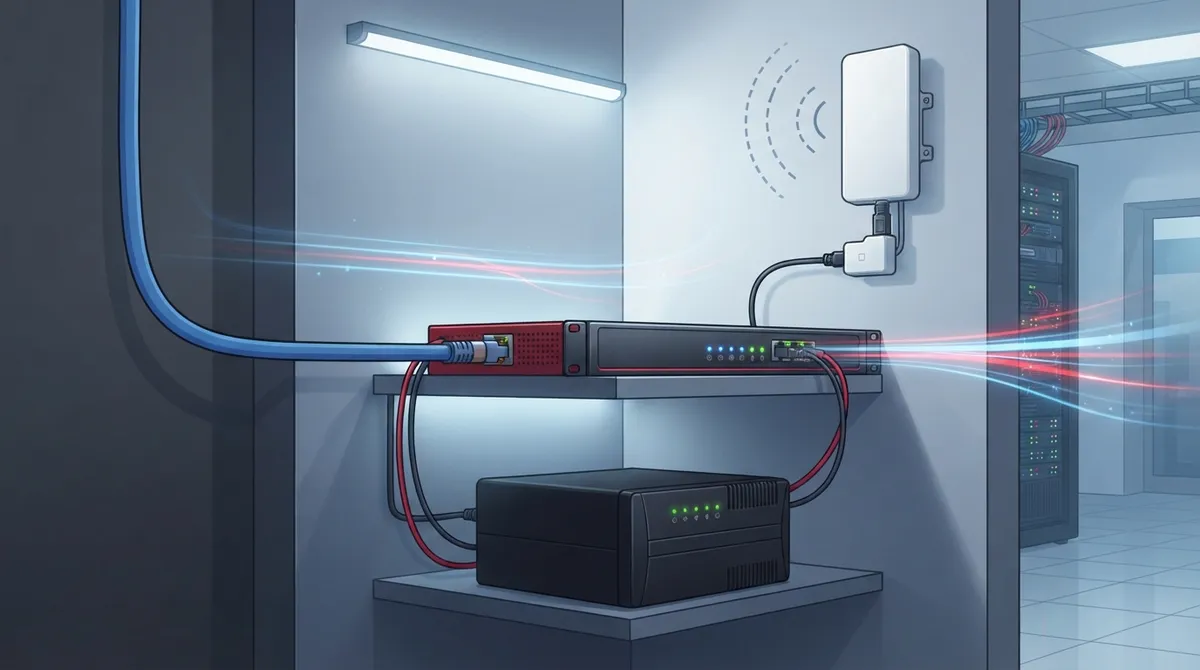
Choose truly diverse backup connections: two lines sharing the same carrier, building entry, power, or route can fail together, and a wired primary paired with cellular backup avoids many shared-path risks.
-
Configure health checks to test real internet reachability by pinging multiple outside targets and monitoring latency, packet loss, and jitter, not just whether the modem has a link light.
-
Set failback carefully with a short stability period or manual failback to prevent an unstable primary line from causing constant switching that disrupts calls and video meetings.
-
Understand that failover restores access quickly but may drop live VoIP calls, VPN tunnels, and video meetings when the public IP or route changes, so test with your real applications.
-
Protect network gear with a battery backup (UPS), since failover can't work if your router, modem, or switches lose power.
-
Test failover on a regular schedule and after any major change, timing the switch and checking phones, VPN, payments, and cameras, rather than relying on vendor claims of seamless recovery.
Picture this: it’s a busy Tuesday morning, your team is on customer calls, and suddenly every screen freezes. The internet is down. Orders stall, phones go quiet, and your cloud apps vanish. Sound stressful? It doesn’t have to be.
That’s where automatic internet failover comes in. It’s a simple idea with a big payoff. When your main internet connection fails, your network quietly switches to a backup connection so your business keeps moving. No scrambling, no rebooting routers, no waiting on hold with your provider.
In this friendly guide, you’ll get 15 practical tips for planning, building, and testing automatic internet failover in 2026. We’ll cover equipment, backup connections, health checks, VoIP, security cameras, and more. Whether you run a small Tampa shop or a multi-location franchise, you’ll walk away knowing exactly what to ask for and what to avoid.

What Automatic Internet Failover Actually Does
Automatic internet failover is a safety net for your connection. A router, firewall, or SD-WAN device watches your main internet line. If that line stops working or gets too slow, the device sends your traffic over a second connection. When the main line is healthy again, traffic returns to it. That return trip is called failback.
The key word is automatic. Nobody has to flip a switch. Here is the basic flow:
- Your network device constantly tests the primary internet connection.
- It spots a failure or poor performance based on rules you set.
- It reroutes new traffic to the backup connection.
- It checks the primary line and returns traffic once it is stable.
Now let’s dig into the 15 tips that help you do it right.

Planning Your Failover Strategy
1. List Your Critical Applications First
Before you buy anything, write down what your business can’t live without. Think phones, payment processing, cloud software, email, and security cameras. This list tells you how much backup speed you really need and what to protect first.
2. Decide How Much Downtime You Can Handle
Ask yourself a simple question: what does one hour offline cost us? For a dental office, it might be missed appointments. For a retailer, it could be lost sales. Your answer helps you decide how fast and how robust your failover needs to be.
3. Choose Truly Diverse Connections
This one trips up a lot of businesses. Two internet lines can still fail together if they share the same carrier, the same building entry point, the same power, or the same physical route. For real protection, pick connections that don’t depend on each other.
A wired primary line paired with a cellular backup is a popular choice because it avoids many shared-path risks. Just verify cellular coverage at your exact location before you commit. If you’re weighing providers, our guide on what to look for in a business internet provider is a helpful place to start.
4. Pick the Right Backup Type
Your backup can be fixed broadband, fiber, cable, 4G or 5G, or even satellite. Each has trade-offs. The table below gives a quick comparison.
| Backup Type | Best For | Watch Out For |
|---|---|---|
| Cable broadband | Affordable second wired path | May share local infrastructure with the primary |
| Fiber | High capacity, stable performance | Higher cost and install lead time |
| 4G/5G cellular | Fast setup, path diversity | Coverage, data limits, variable speeds |
| Satellite | Remote or rural sites | Higher latency, less ideal for voice |
Fiber can be a strong foundation. If you’re considering it, take a look at these fiber internet business benefits.
5. Size Your Backup Capacity Honestly
Your backup doesn’t always need to match your primary speed. But it should handle your essentials. Cellular links may have lower speeds, variable performance, or data caps. Plan for that so you don’t hit a surprise limit mid-outage.
Choosing the Right Equipment
6. Use a Device Built for Multiple WAN Links
You need equipment that supports at least two internet connections. That’s typically a dual-WAN router, a business firewall, or an SD-WAN appliance. Some also support cellular backup through a built-in modem or USB adapter.
Not sure which fits? Here is a simple way to think about it:
- Dual-WAN router or firewall: Great for small offices that need reliable, straightforward failover.
- SD-WAN appliance: Better for multi-location businesses that want smarter traffic control.
- Cellular router or gateway: Handy when your backup is a 4G or 5G service.
7. Consider SD-WAN for Smarter Path Selection
Basic failover is an on-or-off decision. SD-WAN adds application-aware steering and monitors link quality, so it can move specific traffic, like voice, to the best available path. It still needs multiple usable connections and good policies, but it can be a big upgrade for growing companies. Learn more in What Are SD-WAN Services and Does Your Business Need Them?
8. Don’t Forget Power Protection
Here’s a sneaky one. If your router, modem, and switches lose power, failover can’t save you. A small battery backup (UPS) for your network gear keeps things running through short outages and brownouts. It’s an inexpensive step that many businesses skip.
9. Make Sure Your Cabling Can Keep Up
Failover is only as strong as the network behind it. Old or messy cabling can create slowdowns that look like internet problems. A clean, certified setup supports every connection you add. If you’re not sure where yours stands, see what structured cabling is and why it matters, or read about network infrastructure audit steps.
Configuring It the Smart Way
10. Set Health Checks That Test the Real Internet
A good failover system doesn’t just check whether your modem has a light on. It tests whether the internet is actually reachable. That means pinging multiple outside targets and, where supported, watching latency, packet loss, and jitter.
Why does this matter? Sometimes the modem is fine, but the problem is farther upstream. If your device only checks the local port, it will miss those outages entirely.
11. Tune Your Timing and Thresholds
Failover speed depends on your equipment, monitoring intervals, failure thresholds, and carrier behavior. Some vendor guides mention probe intervals of roughly 3 to 5 seconds and triggering after 3 to 5 missed probes as possible starting points. Those aren’t universal rules, so validate settings against your specific device.
Set it too sensitive and you’ll get false triggers from tiny blips. Set it too relaxed and your team waits too long. Aim for a balance, then test.
12. Configure Failback Carefully
Failback is when traffic returns to your primary line. If you switch back the instant the primary blinks to life, an unstable circuit can cause constant flipping back and forth. That’s rough on calls and video meetings.
A better approach is a short stability period before returning, or controlled manual failback for shaky circuits. Slow and steady wins here.
13. Keep Firewall and VPN Policies Consistent
When traffic moves to your backup, your security rules should follow. Make sure your firewall policies, VPN settings, and access rules work the same on both paths. Otherwise, you might fix the outage but open a security gap.
Protecting Calls, Cameras, and Cloud Tools
14. Understand What Failover Won’t Save
Let’s be honest and clear: failover restores access quickly, but it doesn’t always keep active sessions alive. When your public IP address or route changes, live VoIP calls, VPN tunnels, and video meetings may drop and need to reconnect. New sessions generally use the backup path right away.
That’s normal, and it’s why testing with your real applications matters. For phones, pairing failover with a solid cloud system helps a lot. Check out Is VoIP Reliable for Business? What to Know in 2026 for more on keeping calls dependable.
Your cameras and door systems care about the connection too. Cloud-managed security depends on a steady internet link, which is why failover is so valuable for it. Read why cloud-based security systems fail without fast internet to see what’s at stake.
You can also prioritize traffic during an outage. If your backup is slower, give voice, payments, and key cloud apps the green light, and limit streaming or large downloads. This keeps your essentials running smoothly.
15. Test Failover on a Regular Schedule
A failover setup you’ve never tested is just a hopeful guess. Plan to safely simulate a primary-link outage on a regular schedule. A good test looks like this:
- Pick a low-traffic window and tell your team.
- Unplug or disable the primary connection.
- Time how long it takes for traffic to move to the backup.
- Test phones, VPN, payment systems, and cameras.
- Restore the primary and confirm failback works as planned.
- Write down what you learned and fix anything odd.
Test after any major change too, like new equipment, a new carrier, or updated firewall rules. Claims of seamless or sub-second recovery depend on the platform and configuration, so rely on your own results, not marketing promises.
Quick Setup Checklist
Here is a short checklist you can print and keep handy:
- Critical apps and recovery needs documented
- Two truly diverse internet connections in place
- Equipment that supports multiple WAN links
- Backup capacity and data limits checked
- Health checks testing real internet reachability
- Failback delay or manual failback configured
- Firewall and VPN policies matched on both paths
- Battery backup protecting network gear
- Regular test schedule on the calendar
Who Benefits Most From Failover?
Honestly, almost every business benefits, but a few stand out:
- Small businesses: One outage can mean a lost day of sales or appointments.
- Office managers: Fewer emergency calls and a smoother workday.
- IT managers: Less firefighting and clearer visibility into link health.
- Franchise operators: Consistent uptime across many locations, especially with SD-WAN.
If you run several sites, our overview of multi-location telecom solutions shows how to keep every location connected.
Why Local Expertise Makes This Easier
Setting this up involves a lot of moving parts: carriers, equipment, cabling, phones, and security. Juggling separate vendors for each can get messy fast. That’s where a single trusted partner helps. Ideal Solutions Provider, a Tampa-based telecom and IT partner with over 24 years of experience, compares options across 35+ vetted suppliers and handles everything from consultation to installation and ongoing support. If you’re curious how that works, read about why choose an all-in-one telecom solutions provider in Tampa.
You can also explore their business high speed internet services and business network solutions to see what a complete setup can look like. And if you want to learn more about the basics, this overview of an Internet Service Provider is a handy refresher.
Wrapping It Up
Internet outages happen to everyone. What separates a rough day from a routine blip is whether you planned for it. With the right backup connection, the right equipment, smart health checks, careful failback, and regular testing, automatic internet failover keeps your team working and your customers happy.
Start small if you need to. List your critical apps, add a diverse backup line, and test it. Then build from there. You’ve got this, and you don’t have to do it alone.
Ready to protect your business from the next outage? Contact us for a free consultation, and we’ll review your current setup and map out a failover plan that fits your budget and goals. Prefer to talk it through? Call us anytime.
FAQs
Q: What is automatic internet failover for a business?
A: It’s a setup that detects when your main internet connection fails or slows down and automatically sends traffic over a backup connection. It’s like a spare tire that rolls into place on its own, so your team stays online without anyone lifting a finger.
Q: How fast does automatic internet failover switch connections?
A: It depends on your equipment, monitoring settings, and carriers. It can take seconds or longer, and claims of instant recovery vary by platform. The best move is to test it with your own setup so you know what to expect.
Q: Will failover disconnect VoIP calls, VPNs, or video meetings?
A: Sometimes, yes. When your connection path or public IP address changes, active calls and VPN sessions may drop and need to reconnect. New sessions usually flow through the backup right away, so testing your real apps helps you plan ahead.
Q: Is 4G or 5G a good backup internet connection?
A: It can be a great option because it avoids many shared-path risks with a wired primary line. Just check cellular coverage at your site and make sure the speeds and data allowance match your needs. Prioritizing voice and key apps helps stretch it further.
Q: How often should I test my internet failover?
A: Test on a regular schedule and anytime you change equipment, carriers, or firewall rules. Safely simulating a primary outage shows you how long switching takes and what breaks. Think of it as a fire drill for your network.