Key Takeaways
-
Plan your network before buying cameras: check PoE switch capacity and upload bandwidth, since cloud and remote viewing depend heavily on upload speed and congested switches cause choppy video.
-
Choose storage by need: on-premises offers tight local control, cloud simplifies remote and multi-site viewing, and hybrid adds resilience if internet drops, which is a strong middle ground for growing businesses.
-
Use PoE cameras to cut wiring and installation effort, but confirm your switch can supply enough power for every camera you plan to connect.
-
Put cameras on a separate network segment (VLAN) to keep video traffic smooth and isolated from everyday office devices.
-
Secure cameras like any networked device: change default passwords, enable multifactor authentication, install firmware updates regularly, and remove former employees' access quickly.
-
Place cameras at entrances, lobbies, corridors, loading docks, and server rooms, and avoid restrooms and changing areas where people expect privacy; set a written policy on access and retention first.
Picture this: you walk into the office on Monday morning, and something looks off. A door was propped open, a package is missing, and nobody can say what happened. Sound familiar? That is exactly the moment most business owners start shopping for office security cameras.
Here is the good news. Today’s office security cameras are not just little lenses on the wall. They are smart devices that live on your business network, send video over Ethernet, and let you check in from your phone. That also means they depend on your internet, cabling, and network setup in a big way.
In this friendly how-to guide, we will walk you through the whole process, step by step. You will learn how to pick the right type of system, plan your network, place cameras wisely, and keep everything secure. Whether you run a small shop, manage a busy office, or oversee several franchise locations, you will leave with a clear plan and the confidence to move forward.
Why Office Security Cameras Are a Telecom Topic
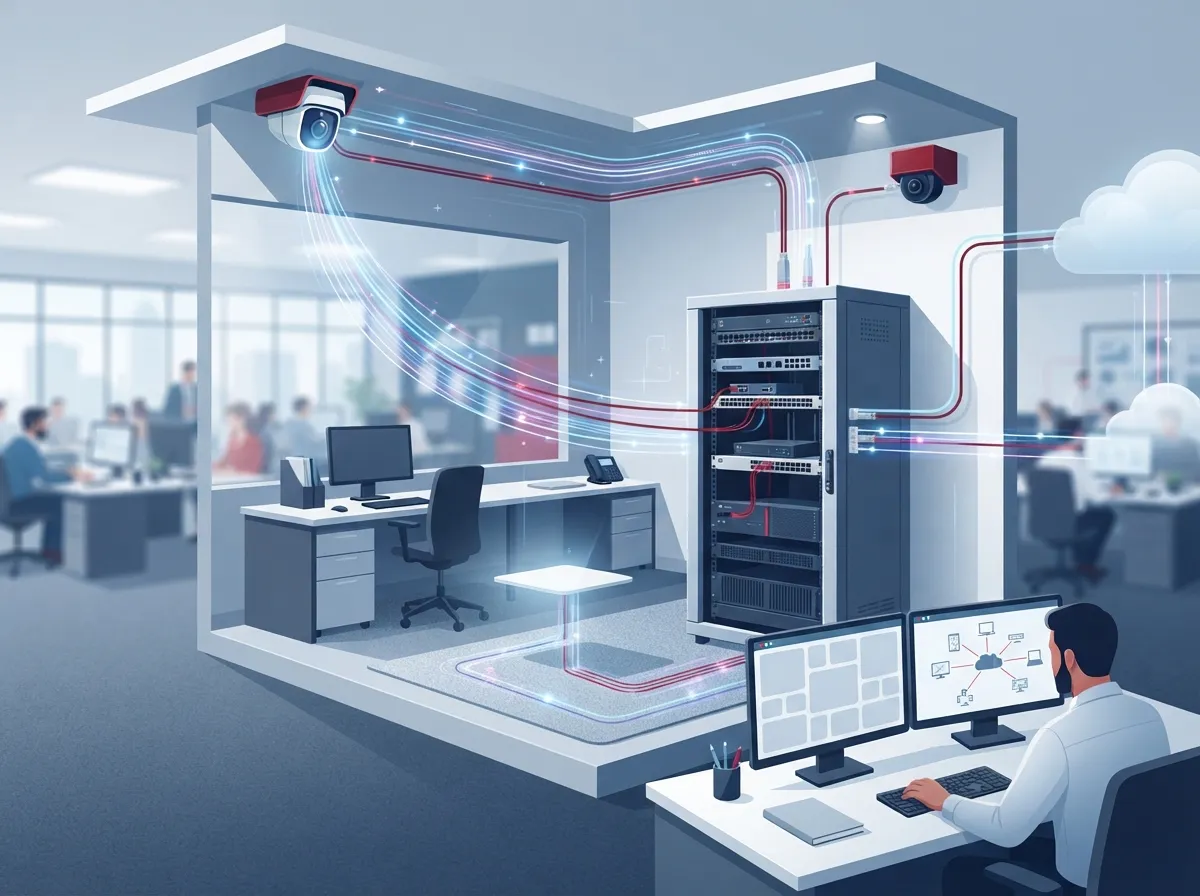
Most people think of cameras as a security product. In reality, modern office security cameras are network devices, just like your VoIP phones and laptops. They connect through your switches, share your internet, and depend on solid cabling.
Most office cameras today are IP cameras. They plug into your Ethernet network and send digital video to a network video recorder (NVR), a video management system (VMS), a cloud platform, or a mix of these.
The market reflects this shift. Grand View Research estimated the global video surveillance market at USD 83.5 billion in 2025, with IP video holding more than 55.7% of market revenue. Commercial applications made up 37.6%. In other words, a lot of businesses are making the same move you are thinking about.
If you want a broader look at what cameras can do for a company, check out what security cameras really do for your business.
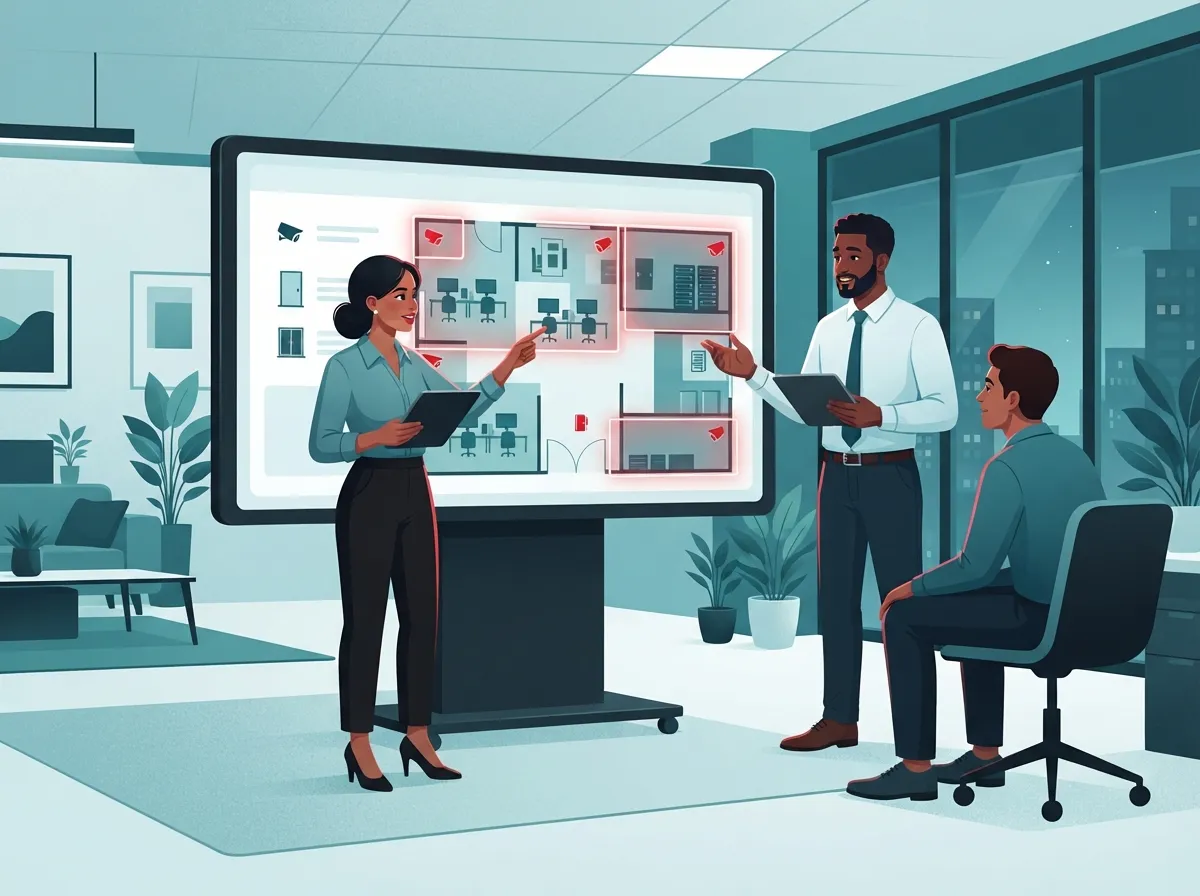
Step 1: Define What You Need to Protect
Before you look at a single camera, grab a notepad. Cameras work best when they solve specific problems. Think about your real risks and daily operations.
Ask yourself these simple questions:
- Where do people enter and exit the building?
- Do you have valuable equipment, files, or inventory?
- Do deliveries arrive at a loading area or front desk?
- Do you need to monitor after-hours activity?
- Do you manage more than one location?
Write down your top three concerns. This short list will guide every choice you make, from camera count to storage. It also keeps you from overspending on features you will never use.
Step 2: Choose Between Cloud, On-Premises, or Hybrid
This is the biggest decision in the whole process, so take your time. Each approach stores and manages video differently.
- On-premises: Footage is stored on a local recorder or server in your building.
- Cloud: Video is stored or managed through a provider’s online platform.
- Hybrid: Local recording is combined with cloud management, backup, or remote access.
Hybrid is gaining fans. SDM Magazine reported that 43% of end users surveyed for Genetec’s 2025 State of Physical Security Report expected hybrid cloud to be their preferred approach within five years.
Here is a quick comparison to help you decide:
| Feature | On-Premises | Cloud | Hybrid |
|---|---|---|---|
| Video storage | Local recorder or server | Provider platform | Local plus cloud backup |
| Remote viewing | Requires secure setup | Built in, usually simple | Built in |
| Internet dependence | Lower | Higher | Moderate |
| Multi-site management | More effort | Easy | Easy |
| Best for | Single sites, tight control | Growing or multi-location teams | Balanced resilience |
For a deeper dive, read 6 key differences between cloud video security and DVR systems. And if you lean toward the cloud, our guide on choosing cloud security cameras for commercial buildings is a helpful next read.
Step 3: Understand How PoE Cameras Work
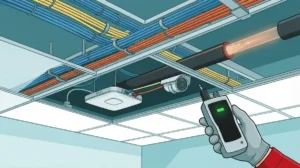
Power over Ethernet, or PoE, is a favorite feature for office installs. A PoE camera uses a single Ethernet cable for both power and data. That means fewer wires, cleaner walls, and simpler installation.
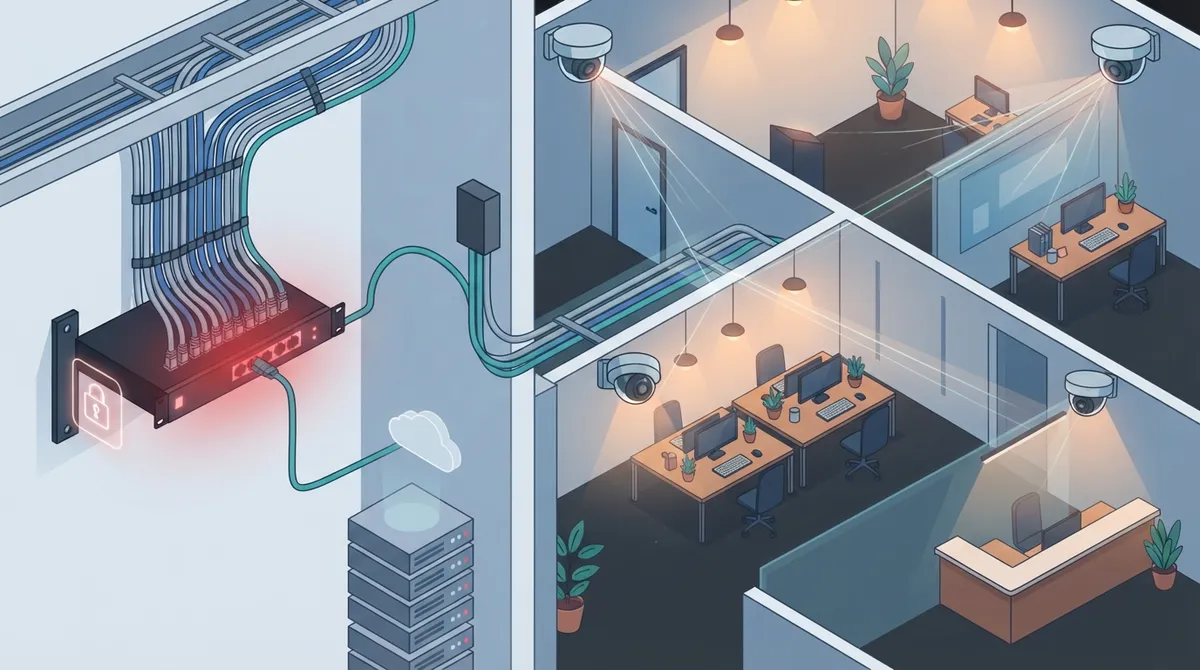
There is one catch. Your network switch must provide enough PoE power for every camera you plan to connect. Your cabling and network design must also handle the video traffic. A switch that is already stretched thin can cause choppy video or dropped cameras.
This is why cabling matters so much. Good structured cabling services give your cameras a stable, reliable path. If you want to see how cabling supports cameras and phones together, take a look at 13 ways structured cabling supports VoIP and cameras.
Step 4: Plan Your Network and Bandwidth
Here is where many offices run into trouble. Video is data-hungry, and cameras compete with everything else on your network unless you plan for them.
Several factors drive how much bandwidth and storage you need:
- Camera resolution: Higher resolution means larger video files.
- Frame rate: More frames per second use more data.
- Number of cameras: Each camera adds to the total load.
- Retention period: Longer storage needs more space.
- Uplink capacity: Your internet upload speed matters for cloud viewing and backup.
Upload speed is the hidden hero here. Cloud and remote viewing rely on it. If your office internet is slow, even the best camera will disappoint you. Our tips on cloud video security bandwidth explain this in plain language, and how to choose the right internet speed can help you size your connection.
One smart move is network segmentation. Putting cameras on their own dedicated VLAN helps isolate surveillance traffic from your everyday office devices. It keeps video smooth and adds a layer of protection.
If your internet is a weak spot, consider upgrading. Learn more about business high speed internet services and how a reliable connection keeps your cameras online.
Step 5: Pick Camera Types and Smart Features
Not every camera suits every spot. Choose the style that matches the location and the job.
- Dome cameras: Great for indoor ceilings, lobbies, and hallways.
- Bullet cameras: Good for entrances and exterior walls.
- Turret cameras: Handy for corners and flexible aiming.
- Multi-sensor or wide-angle cameras: Cover large open areas with fewer devices.
You will also see AI-powered analytics on many models. These features can support motion detection, object alerts, and faster video search. The interest is real. SDM Magazine’s 2025 Industry Forecast found that 73% of surveyed security professionals cited video analytics and AI as the technology most likely to increase revenue that year.
That said, results vary by system and lighting conditions. Before you rely on analytics, ask about accuracy, false alerts, and privacy. Also ask where the analytics run: on the camera, on your premises, or in the cloud.
Not sure which brands to consider? Our guide to the best security camera brands for businesses is a good starting point.
Step 6: Place Your Cameras Wisely
Smart placement beats a big camera count every time. Start with the spots where activity and risk overlap.
Common office camera locations include:
- Main entrances and exits
- Reception and lobby areas
- Corridors and stairwells
- Loading docks and delivery areas
- Server rooms and supply closets
- Parking lots and building exteriors
Just as important is knowing where not to place cameras. Avoid areas where people expect strong privacy, such as restrooms and changing areas. Be thoughtful about break rooms too.
Not sure how many cameras you need? Our breakdown of the 10 factors that decide how many security cameras you need walks through the math in a friendly way.
Step 7: Set Clear Policies and Respect Privacy
Great cameras come with great responsibility. A simple written policy protects your team and your business.
Your policy should cover these basics:
- Who is allowed to view live and recorded footage
- How long you keep recordings
- When and how footage can be shared or disclosed
- How employees are notified about cameras
Retention depends on your needs, your industry, and local rules. Many offices choose a set window and then overwrite older video automatically. Laws on recording and notice differ by location, so check applicable local requirements or speak with a legal professional before you finalize your plan.
Curious how long cloud systems keep video? See 6 key facts about cloud video security footage storage.
Step 8: Lock Down Your Camera Security
Here is a fun irony: a camera meant to protect you can become a weak link if it is not secured. IP cameras are network devices, so they need the same care as any other connected gear.
Follow these best practices:
- Change all default passwords and use strong, unique credentials.
- Turn on multifactor authentication wherever it is available.
- Install firmware updates on a regular schedule.
- Limit who has access, and remove former employees quickly.
- Use encrypted connections for remote viewing.
- Keep cameras on a separate network segment.
If you are weighing cloud against traditional protection, this comparison can help: cloud security vs. traditional network security.
Step 9: Plan for Outages and Remote Viewing
Remote viewing is one of the biggest perks of networked cameras. You can check the office from your phone, whether you are at home or on the road. It does depend on reliable connectivity, though.
Ask what happens if your internet drops. Some systems keep recording locally and sync later, which is a lifesaver. Hybrid setups shine here. Learn more in how to keep security cameras working during internet outages.
Want to see the phone side of things? Read can I monitor my business security cameras from my phone.
Step 10: Connect Cameras With Access Control and Telecom
Cameras get even more useful when they work alongside other systems. Pairing video with door access lets you see who entered, and when. It helps you review events faster and tighten up entry rules.
You can also line up your cameras with your phone and internet services so everything runs on one healthy network. A single partner who understands all of these pieces makes life easier. Explore cloud based access control and cloud video security to see how they fit together.
For franchise operators and multi-site teams, centralized management is a big win. Our post on multi-location cloud surveillance shows how to keep every site in view.
Step 11: Budget and Choose an Installer
Costs vary based on camera count, resolution, storage, cabling, and licensing. Remember to budget for the full picture, not just the cameras. Cabling, switches, storage, and any monthly cloud fees all count.
Here is a simple way to think about your budget:
| Cost Area | What to Consider |
|---|---|
| Cameras | Type, resolution, and smart features |
| Cabling and switches | PoE capacity and cable runs |
| Storage | Local drives, cloud plans, or both |
| Licensing | Software and analytics subscriptions |
| Installation and support | Setup, training, and ongoing help |
For more detail, see how to budget for commercial video surveillance and 9 tips for affordable cloud security camera installation.
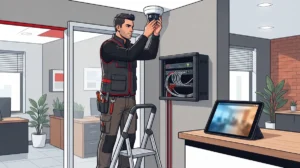
When it comes to installation, experience pays off. A good installer checks your network, plans cable paths, tests coverage, and trains your team. Our guide to hiring the right security camera installer lists what to look for. Ideal Solutions Provider, a Tampa-based telecom and IT partner with over 24 years of experience, handles consultation, installation, and ongoing support through a single point of contact.
Common Mistakes to Avoid
Learn from others and skip these frequent missteps:
- Buying cameras before checking network and switch capacity
- Ignoring upload bandwidth for cloud or remote viewing
- Leaving default passwords in place
- Placing cameras in areas with strong privacy expectations
- Skipping a retention and access policy
- Forgetting about firmware updates after installation
Our post on 15 cloud video security mistakes to avoid in 2026 goes even deeper on this topic.
Final Thoughts
Choosing office security cameras does not have to feel overwhelming. Start with your risks, pick the storage style that fits, plan your network and cabling, place cameras with care, and protect the system with strong security habits. Do those things, and you will end up with a setup that works quietly in the background and gives you real peace of mind.
Ready to take the next step? Contact us for a free consultation, or call us to talk through your office and see what a tailored camera, cabling, and network plan could look like. We would love to help you get it right the first time.
You can also stay connected with our team on YouTube for helpful videos, and learn more about structured cabling if you want to understand the backbone behind a healthy camera network.
FAQs
Q: What are the best security cameras for an office?
A: For most offices, PoE-powered IP cameras are a great fit because one cable handles both power and data. Pick dome cameras for indoor spaces and bullet cameras for entrances, then match resolution and storage to your needs. The best choice always depends on your layout, network, and budget.
Q: Should a business choose cloud, on-premises, or hybrid office cameras?
A: It depends on your retention needs, internet speed, and how many sites you manage. Cloud is easy for remote and multi-location viewing, on-premises gives you tight local control, and hybrid blends both for extra resilience. Many growing businesses like hybrid for its balance.
Q: How much internet bandwidth do office security cameras need?
A: There is no single number, because it depends on camera resolution, frame rate, camera count, and retention. Upload speed matters most for cloud storage and remote viewing. A quick network assessment can estimate the right capacity so your video stays smooth.
Q: How can a company secure IP cameras against unauthorized access?
A: Start by changing default passwords and using strong, unique credentials with multifactor authentication where available. Keep firmware updated, limit user access, use encrypted connections, and place cameras on their own network segment. Small habits like these go a long way.
Q: Can office security cameras be integrated with access control or business telecom systems?
A: Yes, they often can. Pairing cameras with door access lets you match entry events to video, and running everything on a well-built network keeps it reliable. Working with one partner for cameras, cabling, internet, and phones makes the whole setup smoother.